
Are you struggling with filling in fonts on your Silhouette Cameo machine?
Whether you’re a beginner just starting to learn how to use a Silhouette Cameo or an experienced user looking for a quick fix to a problem that’s been nagging you for a while, here are three tips to get the best results when filling in fonts with your machine.
These tricks will help you achieve the perfect fill every time.

I get commissions for purchases made through some of the links in this post. There is no extra cost to you. See my full disclosure here.
1. Fill in Font with Sketch Pens
One of the easiest ways to fill in font on Silhouette Cameo is to use sketch pens. To do this, load the pen tool and slightly lift it up in the housing unit. This will prevent the pen from touching the paper and allow you to fill in the font without any mistakes.


2. Use the Right Cutting Mat
Using the right cutting mat is crucial for getting the best results when filling in font on Silhouette Cameo. We recommend using the Silhouette cutting mat that comes with your machine to ensure that the pen stays in place while you fill in the font.

3. Check the Placement of Pens
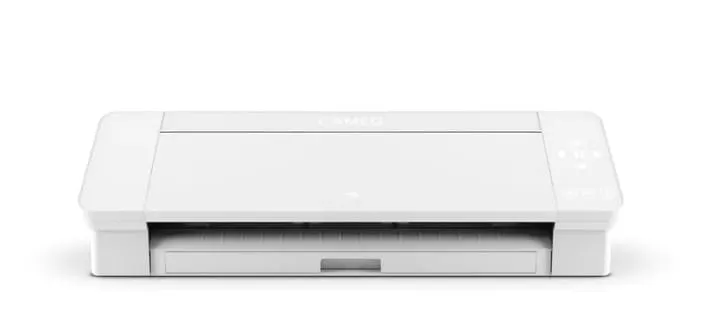
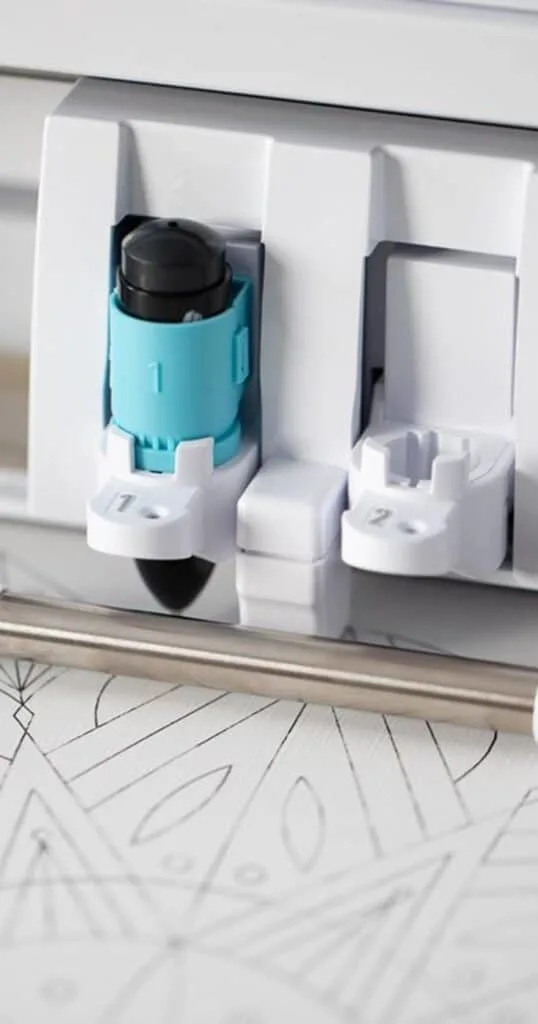
It’s important to check the placement of the pens before filling in the font. The Cameo 4 comes with a special pen adapter. This is where you place the sketch pens.
Put the sketch pen in the sketch pen adapter, but don’t push it all the way down. This will help you see exactly where the pen will hit the paper and avoid any dragging or mistakes in your design.

Conclusion
By following these three tips and answering some frequently asked questions, you’ll be able to fill in font on Silhouette Cameo like a pro. Remember to use sketch pens, the right cutting mat, and check the placement of pens for the best results.


FAQ
To fill in letters on Silhouette Cameo 4, you can use the sketch pens or use the fill tool in the software.
To fill font with color in silhouette, select the font and use the fill tool to apply the desired color.
To solid fill in Silhouette Cameo, select the font and use the fill tool to apply the desired color.
To make a solid font in Silhouette Cameo, select the font and use the fill tool to apply the desired color.
To fill text in Silhouette, select the font and use the fill tool to apply the desired color.
To thicken the font in Silhouette, select the font and use the offset tool to increase the width of the font.
To make your font bolder in Silhouette, select the font and use the offset tool to increase the width of the font.
To fix your font size in Silhouette, select the font and use the resize tool to adjust the size of the font.
