
If you’re into web design and working on silhouette studio edition, you want the uploaded images to look professional and retain the same quality you designed.
Therefore, saving the images as scalable vector graphics (SVG) is the right thing to do. Here are a few pointers to help you navigate saving your silhouette file as SVG.
Can you export SVG from Silhouette?
You know that you need SVG file format, but is it even possible? The best news is yes; you can, depending on what edition of Silhouette you’re using.
If you have upgraded to Silhouette Studio Business Edition, you can now comfortably export the files you have personally created to SVG from Silhouette.


I get commissions for purchases made through some of the links in this post. There is no extra cost to you. See my full disclosure here.
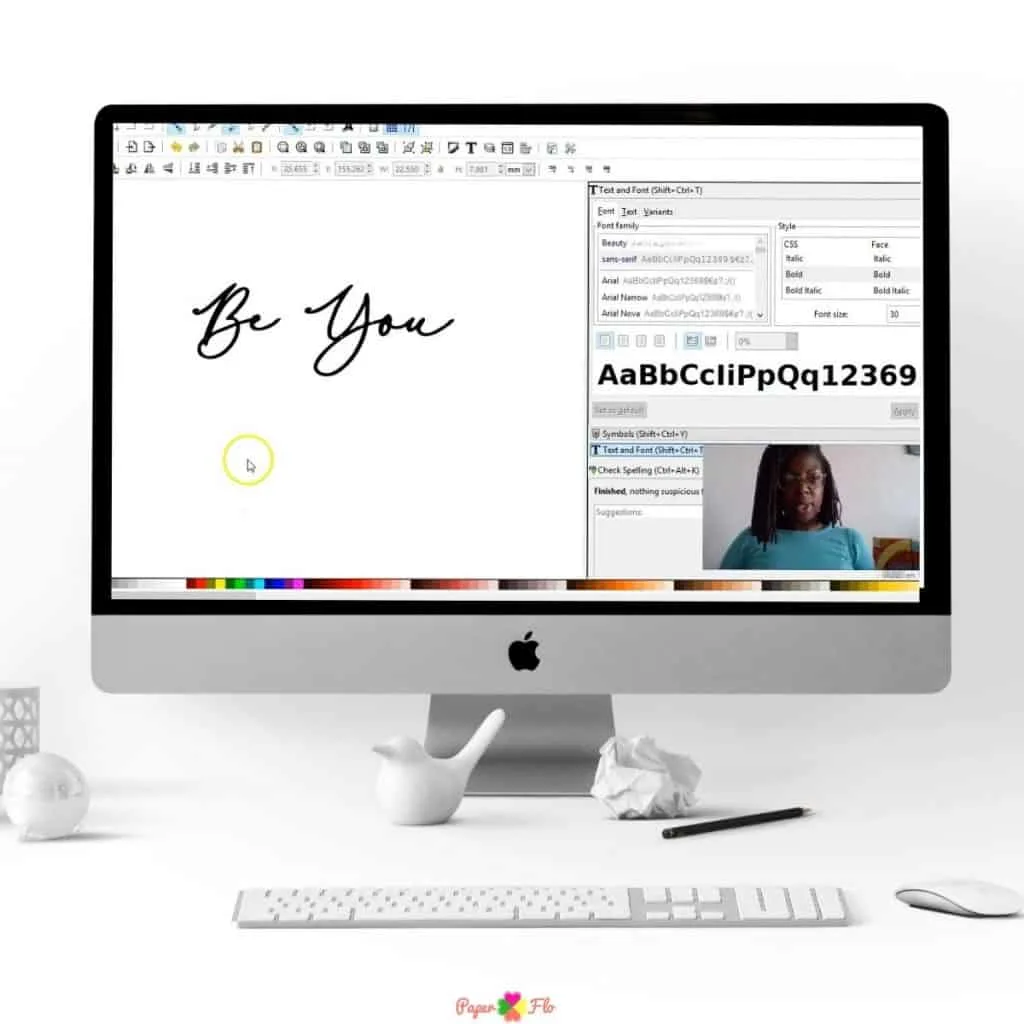
If you’re using the Business edition, follow this simple process to save your image in SVG: Click on ‘file,’ then click on ‘save as’ and save your image onto the Hard Drive. You’ll see more alternatives to save as SVG, PDF, and JPG. Choose SVG and save.
If you’re into web design and working on silhouette studio edition, saving the images as scalable vector graphics (SVG) is the right thing to do. Here are a few pointers to help you navigate saving your silhouette file as SVG.
Pro Tip: Please note that some files that you purchase from the silhouette design will not be exportable as SVG.


Why can’t I save SVG in Silhouette?
Sometimes, you follow the instructions, and you still can’t see where you’re supposed to click and save the file you want.
If you still aren’t finding this option on Silhouette, please check that you have installed the Business edition. If you haven’t installed the Business Edition, you’ll not see the option to save as SVG.
Why can’t I open an SVG file in Silhouette?
Sometimes, you try to open your file, and you’re met with the rude “file not supported error.” If you want to work on a file on Silhouette, it’s paramount to note that not all file types are supported.
The only file formats you can open on Silhouette are photo files and other formats such as EPS, SVG, and DXF.
If your file won’t open, the most likely culprit is that you’re opening the wrong type of file for your software. If you’re using the basic edition of Silhouette, you’ll not be able to open files that have been saved as SVG.
SVG will only open on the business edition. Choose the correct file format for your software level, or upgrade your software to business to access the format you need.

Conclusion
You can save your silhouette designs in many formats, but SVG format is great for so many reasons. Its quality isn’t dependent on the resolution when scaling to different sizes. Whether you’re using it for a website or plan to print it out in the future, the quality is the same. The images are also easy to animate, giving you a rich experience of your designs. And finally, they’re easy to style and quickly adapt to any device without altering their quality.
How to Save Silhouette File as SVG


Here is how to save images as scalable vector graphics (SVG) in Silhouette in 3 steps.
Materials
- Silhouette Studio (Business or Designer Edition)
Tools
- computer
Instructions
- Click on 'file,'
- Click on 'save as' and save your image onto your hard drive. You'll see more alternatives to save as SVG, PDF, and JPG.
- Choose SVG and save.
Recommended Products
As an Amazon Associate and member of other affiliate programs, I earn from qualifying purchases.


