
Are you struggling to find a font for your next t-shirt crafting project? We’ve all been there, you see a font on a shirt and think “I have to find that font!”. This is the reason why you need Google fonts for crafting.

There are many ways that you can go about finding fonts. There are paid options and free options. For example, have you ever wondered “What font does Google use”?
I get commissions for purchases made through some of the links in this post. There is no extra cost to you. See my full disclosure here.
How Much do Google Fonts Cost?

Did you know that you can get Google fonts for free? It’s an open-source program meaning that you can use the fonts for personal or commercial use. That’s good news!
What Font Types are Available?
While they may not have every font under the sun, they do have a huge selection of fonts to choose from. In fact, there are over 900 font families for you to choose from.
You’ll find serif, sans-serif, cursive, fantasy and plenty of other types of fonts.
Fantasy fonts are good for making holiday t-shirts, like DIY Halloween costumes for kids.


How do I add Google Fonts to My Computer?
It’s simple to add Google Fonts to your computer. I’ll explain the steps below.
You don’t have to take notes because you can watch the video tutorial and also get a printable version of the steps at the end of the post.
Go to fonts.google.com
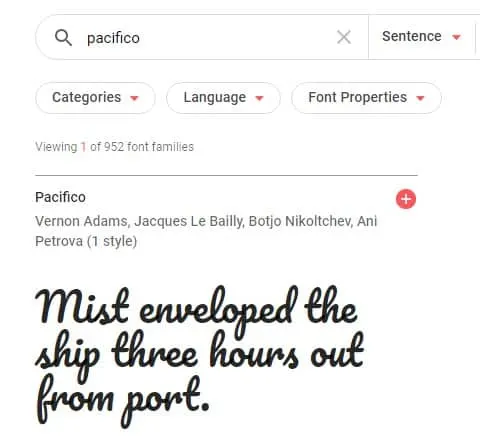
Type the name of the font in the search bar or scroll through the options


Click the plus icon to select the font family

Click “Customize” to add more options

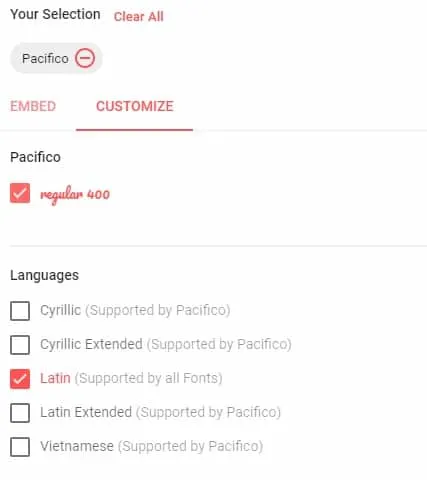
Click on “Embed” if you want to embed the font to your website or
Click on the down arrow to download the font.

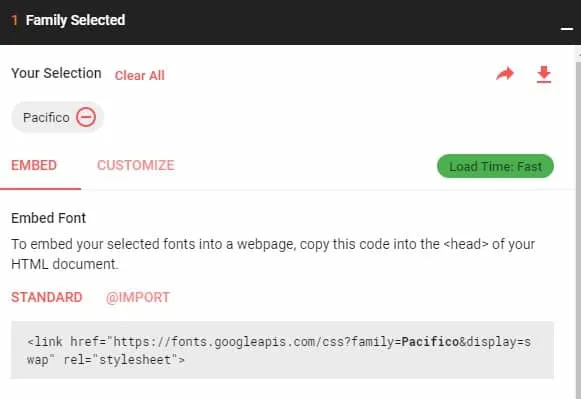
Save it to your computer or an external hard drive
Personally, I love Google products and use pretty much everything they put out. When I found out that they also had an amazing fancy fonts library, I was so excited!
Crafting with Google Fonts

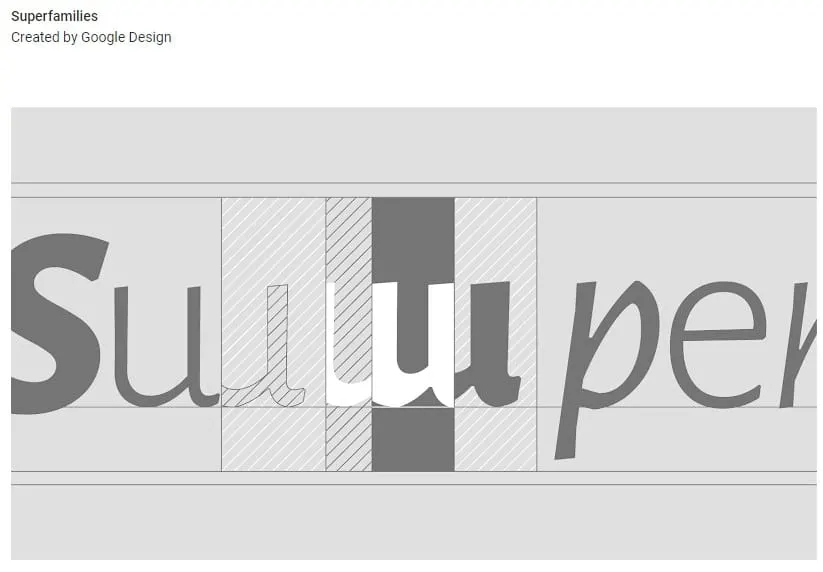
And, seriously who doesn’t love having access to more fonts? Once you start making svg files, you get bored pretty quickly with only the font files on your computer.
It’s more fun to see what else is out there and try new fonts.
Adding new fonts to your computer is great if you like to vary your crafting style. It also lets you personalize items like t-shirts easily. If you want to learn how to make your own text svg files, check out my So Simple SVG Files course!

SO QUICK SVG COURSE
STEP BY STEP VIDEO COURSE FOR CRAFTERS
Create and design your first svg to use in your crafts or even sell.
Learn to make an SVG with Google in one click!
Adding fonts to Cricut


Once you add your new fonts to your computer, phone or tablet, you can also use them in Cricut.
It’s easy to download fonts to Cricut design space.

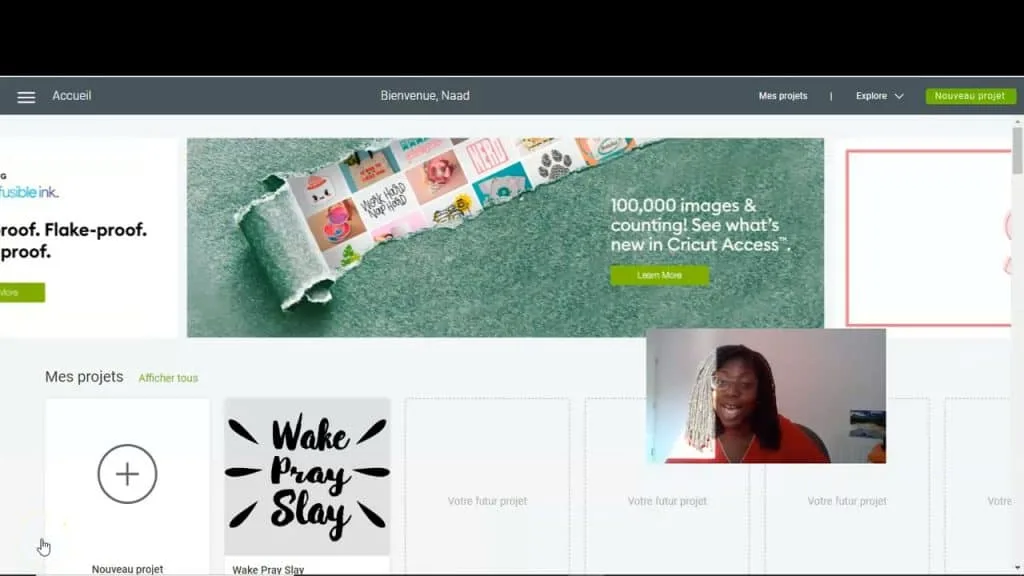
Each time you log in, Cricut Design Space will automatically find and access any font that you upload to your computer.
This means that you can use your own personal fonts for Cricut iron on crafts and different projects in Design Space for free.
Pro Tip: Not all fonts are compatible with Cricut. Some fonts may not upload or may be hard to use. Do a test import before planning out your entire project around one font.

Want to make your own designs and use them in the templates? Learn how to make svg files, in my So Simple SVG Files course. You’ll learn the basics of how to use graphics software and how to draw basic designs.


How to Download Google Fonts


Follow these instructions to download Google Fonts to your computer. There are more than 900 font families. You can download them and use them for craft projects in Cricut.
Materials
- Computer or mobile device
Tools
- Google Chrome or most browsers
- external hard drive (optional)
Instructions
- Go to fonts.google.com
- Type the name of the font in the search bar or scroll through the options
- Click the plus icon to select the font family
- Click “Customize” to add more options
- Click on “Embed” if you want to embed the font to your website or
- Click on the down arrow to download the font.
- Save them to a file on your computer or an external hard drive (optional)
Recommended Products
As an Amazon Associate and member of other affiliate programs, I earn from qualifying purchases.


