
Cricut Maker Won’t Connect to Computer? Here’s How To Fix It!
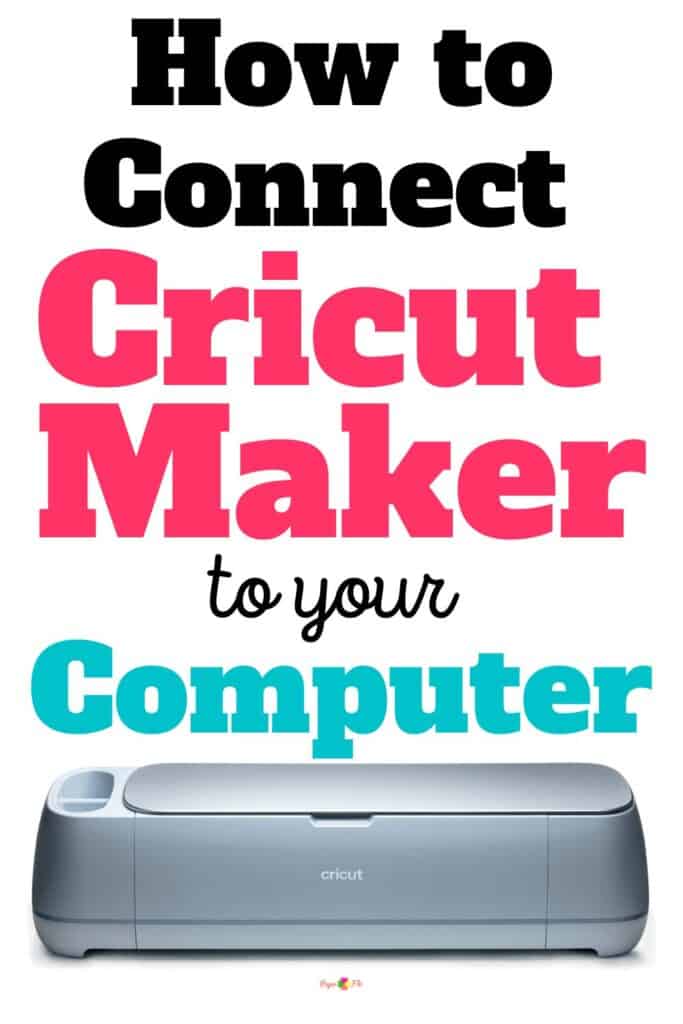
Are you getting a connection error message on your Cricut Maker? This problem happens from time to time, but you can easily fix it.
There’s nothing more frustrating than trying to work on a last minute crafting project and finding that your Cricut Maker won’t connect to your computer.
Don’t just turn it off and go back to watching Netflix. There are some things you can do to troubleshoot the problem and get back to creating.


I get commissions for purchases made through some of the links in this post. There is no extra cost to you. See my full disclosure here.
USB vs Bluetooth: which works best?
First things first, determine how you are connecting your Cricut Maker to your computer. Are you using a USB cable or Bluetooth? If you’re using one method, try the other and see if it resolves the issue.
Check the USB connection
If you’re using the USB connection, check that the cable connecting your Cricut Maker and your computer is well plugged in on both sides.
Is Bluetooth on Your Computer?
If you’re using Bluetooth, check if your computer has Bluetooth capability. Bluetooth is required to pair your computer with your Cricut Maker. Not sure if your computer has Bluetooth?
Go to your computer settings and look for the Bluetooth toggle. Most modern computers have Bluetooth already installed, but older models may require a Bluetooth Dongle.


Assuming your computer has Bluetooth capabilities, let’s move on to the troubleshooting tips.
Close Enough for a Bluetooth Connection?
Check the distance between your Cricut Maker and your computer. If they are too far apart, it may be difficult to connect them. Your best bet is to have them within 10 to 15 feet of each other.
In the real world, it can be challenging (aka, a pain in the you-know-what) to transmit signals between different rooms, just like how your Wifi signal drops when you move from one room to another. The same issue can happen between your computer and your Cricut machine, so try to keep them close to each other.
Is Bluetooth on?
Make sure your computer’s Bluetooth is turned on. It may sound like an obvious step, but it’s worth double-checking. Go to your computer’s Bluetooth and Devices menu and look for the toggle switch for Bluetooth. If it’s turned off, toggle it on to activate it.
Too Many Devices Connected
Check if other Bluetooth devices are connected to your computer. Other devices might be interfering with the connection to your Cricut Maker. Go to your computer’s Bluetooth and Devices menu and turn off any other Bluetooth devices that might be connected. Then try to connect your Cricut Maker again.
Are there New Updates to Design Space?
Check whether your Design Space software is up to date. A recent update might be causing connection issues with your Cricut Maker. Check the notifications section of Design Space. There might be an update that you need to install. Once you install the update, go ahead and restart your computer.
Pro Tip: Keep your Cricut Maker and computer in the same room
Reconnect and Reboot
If none of these troubleshooting tips works, try reconnecting your Cricut Maker from Cricut Design Space using the New Machine Setup feature. It’s easy to do, and here are the steps:
- Go to Cricut Design Space
- Select “New machine setup” from the menu
- Continue with the reinstallation
Conclusion
These troubleshooting tips should help you resolve any issues you may be experiencing with connecting your Cricut Maker to your computer.
Take a deep breath and don’t give up. Sure, this is probably easier said than done.
If you’re still having issues, reach out to Cricut support. Their Member Care team is available via phone and email. They also have a chatbot where you can write your questions directly and the little robot will spit out an answer.
Now you’re all set to get back to creating!
Need some craft ideas?
Now that you’re Maker is connected, check out my post on how to use Canva to make easy cut files.

FAQ: Cricut Maker Won’t Connect to Computer? Here’s How To Fix It!
Q1: Why is my Cricut Maker not connecting to my computer?
There could be several reasons for this issue, including a faulty USB cable, driver problems, or issues with your computer’s USB ports. You can follow our guide to troubleshoot and fix this problem.
Q2: How do I check if my USB cable is working properly?
To check your USB cable, try using it with another device or use a different cable with your Cricut Maker. If it works with the other device or cable, your initial cable might be faulty.
Q3: How can I update the drivers for my Cricut Maker?
You can update the drivers for your Cricut Maker by visiting the official Cricut website and downloading the latest drivers for your specific model. Follow the installation instructions provided to update the drivers successfully.
Q4: What should I do if my Cricut Maker still won’t connect after troubleshooting?
If your Cricut Maker still won’t connect after troubleshooting, consider contacting Cricut’s customer support for further assistance. They can provide specialized guidance and help you resolve the issue.
Q5: Can I use a wireless connection with my Cricut Maker?
Yes, some Cricut Maker models support wireless connections. Refer to your Cricut Maker’s user manual to learn how to set up and use a wireless connection if your model supports it.

Danice James
Saturday 10th of June 2023
I am connected to internet, I am connected to my Explore Air2 but when i click next to cut design, no accessory will pop up in selection box on my iPad. The same issue happens from my iPhone. I have tried all ways to fix problem from internet instructions and none have worked.
Naa Ardua
Monday 12th of June 2023
Danise are you connected via bluetooth? Make sure that your devices are all turned on in your Bluetooth settings.