
Some of the best files to use in Cricut are svg files.
Here is how you can make svg files in Canva for Cricut.
If you love making crafts with your cutting machine, then you’ll love this method that uses Canva to make your own cut file designs.
I’ll walk you through my step-by-step method in a minute.
For now, take a look at the short video below to see how easy it is.
WATCH the Canva svg files intro video
Scroll to the bottom of the post to watch the full video and printable instructions
While Cricut has a big collection of designs, it’s fun to be able to use other designs too.
It’s even better if you can turn those designs into svg files.
In case you’re wondering, svgs are vector graphics.
They can be enlarged and cropped without losing the quality of the image.
Supplies Needed for SVG
You may be surprised to hear that Canva is compatible with Cricut.
Canva is an online graphic software editing program.
It’s one of my favorites so I was happy to learn that you can make svgs with it.
We’re going to use Canva for this method and it also requires a Canva Pro account.


The option to save your design as an svg file is currently only available to Pro account users.
That could change in the future, but for now, it’s a paid feature.
I recently upgraded to the pro account because I use Canva a lot! So it was worth it for me.
The nice thing is that switching from a free account to a pro account is pretty affordable.
I pay for the yearly plan which means that I save more money over the monthly subscription option.


Step by Step Instructions to Use Canva to Make SVG Files
- Open a new template in Canva, I suggest using the T-shirt template (it’s 14 x 18 inches)
- Click on Elements from the left side menu panel
- Search for an image, I searched for “cupcake” or upload your own design
- Click on Text or type the letter “T” on the keyboard
- Type out your quote, saying or any words you like
- Click on the Download arrow
- Select the file type as “SVG sharp vector graphics at any size”
- Open Cricut Design Space
- Upload the saved svg file into Design Space.
Pro Tip: Choose a flat color image with a simple pattern. Images with a lot of shading or busy patterns won’t work as well.
Make Text Designs in Canva
Not only can you use Canva to save graphics as svg files, but you can also use the platform to save your text designs as svg files too.
The font that I used in the video tutorial comes from Canva but you can also make your own text designs using any font that you like.
For a step-by-step tutorial on how to do this in Inkscape, sign up for my So Simple SVG Quotes course.


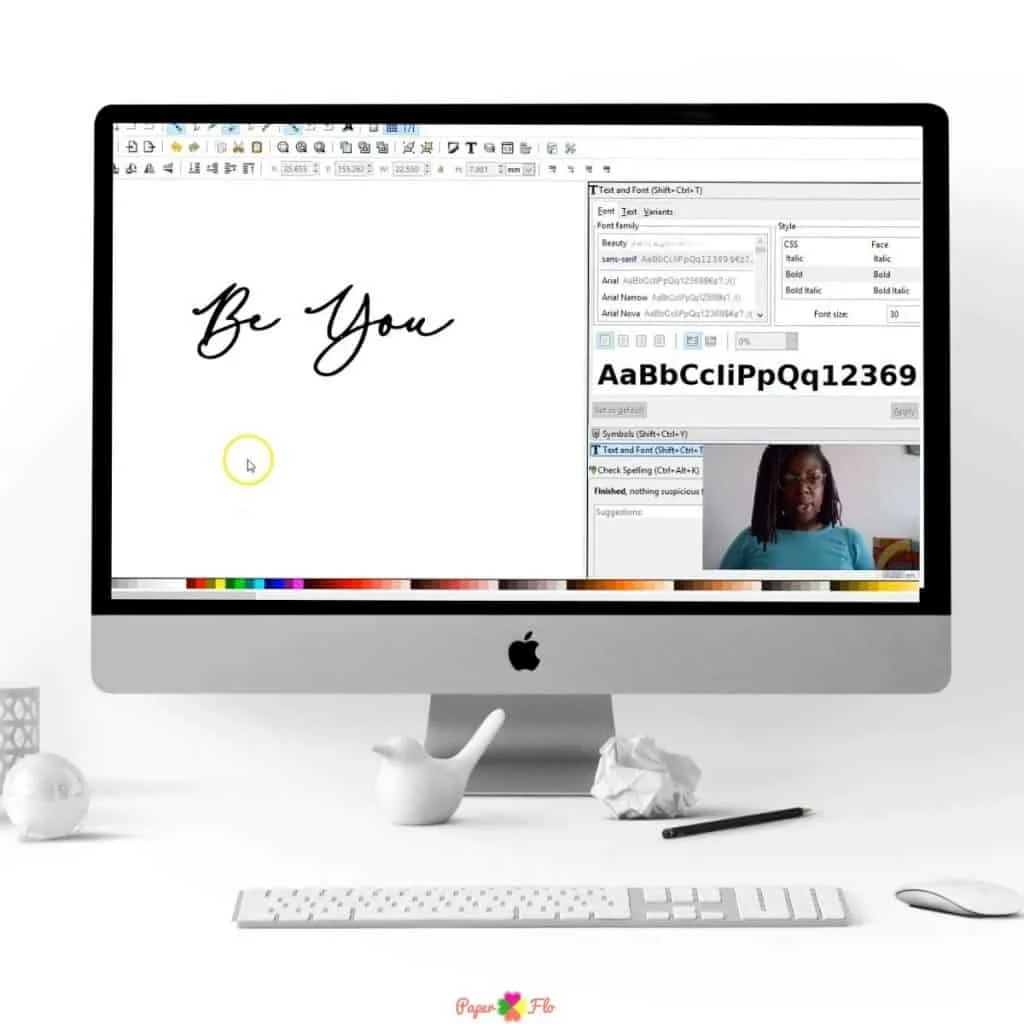
If you liked this lesson, you’ll love my So Simple SVG Files course.
I will walk you through the steps to make digital drawings using simple shapes in Inkscape.
You’ll also learn how to transfer your drawings to your craft projects and get better use from your cutting machine.
Can you use videos with svg files in Canva?
Once you’ve made you’re svg in Canva, you can share it on social media.
But instead of just posting your new design, you can turn it into a GIF.
Want to know how? Here’s how you can turn an SVG into a GIF with Canva.
Want more easy tips for svg projects like this? Check out my collection of svg tips.
Click to play and watch the full tutorial video below
Making the Switch: Adobe Illustrator to Canva
If you’re a fan of Adobe Illustrator for your SVG projects, then you’ll love how easy Canva makes designing your own images.
Canva’s design program is a breath of fresh air, especially for busy people like us. It’s perfect for creating SVG files with its user-friendly interface.
Imagine designing a stunning visual for a new project, using separate layers for intricate designs with a transparent background – all in Canva!
Plus, it’s great for both personal use and commercial use. Check out some editing SVG files tips to ease into Canva’s world.
Custom SVG Designs: Unleash Your Cricut’s Potential
Got a Cricut Explore or Maker? Let’s talk about spicing things up with Canva designs. Picture this: you’re working on a new design for a greeting card.
Using Canva’s color palette and templates, you create a layered design with a cute dashed line around a birthday cake.
Then, you simply upload the image as an SVG file to your Cricut machine. If you need, I’ve got a handy guide to help with grouping letters.
Crafting Showdown: Silhouette Cameo vs. Cricut
Choosing between Silhouette and Cricut for your SVG projects? Both machines handle SVG cut files, but they differ in software and user experience. Canva steps in as a versatile ally for both machines.
You could create a social media graphic in Canva, with a cool transparent background, and then convert it into an SVG format for either machine.
Canva for Business: Beyond Crafting
Canva isn’t just for crafting – it’s a powerhouse for business owners too. Whether you’re designing business cards or social media graphics, Canva offers a range of templates and design elements.
Imagine creating a PowerPoint presentation with stunning visuals and intricate designs, all easily done in Canva.
It’s a great way to add a professional touch to your work, and the best part? No extra cost if you’re using the free version.
How to Make SVG Files in Canva for Cricut


Here is how you can make svg files in Canva for Cricut. If you love making crafts with your cutting machine, then you’ll love this method that uses Canva to make your own cut file designs.
Materials
- graphic design (optional)
Tools
- Canva
- Cricut Design Space
Instructions
- Open a new template in Canva, I suggest using the T-shirt template
- Click on Elements from the left side menu panel
- Search for an image, I searched for “cupcake” or upload your own design
- Click on Text or type the letter “T” on the keyboard
- Type out your quote, saying or any words you like
- Click on the Download arrow
- Select the file type as “SVG sharp vector graphics at any size”
- Open Cricut Design Space
- Upload the saved SVG file into Design Space.
Recommended Products
As an Amazon Associate and member of other affiliate programs, I earn from qualifying purchases.


oluyemisi olotu
Wednesday 31st of January 2024
Do you ever get the black box over your canva svg graphics in cricut DS? If so, how do you solve it?
Jessica
Tuesday 9th of November 2021
It didn’t work for me. When I upload or try to in cds it says I supported file. I tried 4 different plainer images I found on google. I’m trying to do a fire rescue logo for a firefighters spouse. And it won’t work.
Amy
Tuesday 12th of April 2022
@Naa Ardua, This isn't working for me and I am using both the Canva app and Cricut app on my computer, no browser and when I upload the image in DS it says unsupported file.
Naa Ardua
Tuesday 9th of November 2021
Try using a different browser. I used Google Chrome. It might work from another browser.
How to Create SVG Files for Cricut (with Pictures) - Paper Flo Designs
Wednesday 24th of February 2021
[…] with a clear background. An image with a complex background will be harder to convert. You can clear up the image background using an online editor like […]