
Knowing how to delete layers in Inkscape is one of the basic functions that you need when drawing in this vector program.
If you’re reading this, then I guess that means you want to know how to do this basic function.
There is more than one way to delete layers or subtract layers. I’ll show you two ways that you can delete them.
Sometimes you only need to hide a layer in Inkscape so that you can see other parts of the drawing more clearly.
I have a post that explains how to do that, but this one is all about how to delete them.
Don’t have time to read the post? Watch the quick video just below or pin this post to Pinterest so that you can come back to it when you have more time.
WATCH how to delete layers in Inkscape intro video
Scroll to the end for the full video
I get commissions for purchases made through some of the links in this post. There is no extra cost to you. See my full disclosure here.
How do Layers Work in Inkscape?
In case you’re new to Inkscape, I’ll quickly explain how layers work in Inkscape.
Layers allow you to separate the different parts of your drawing. It can be a great way to control and edit selected parts of your drawing without changing all the other parts of it.
This means that you can delete entire sections of your drawing that are on the same layer and keep the other layers intact.
In the drawing below, I have four layers to separate the main sections. There is a layer for the clouds, a layer for the pink mountains, a layer for the leaves and a final layer for the grass.

How Do I Clean Up an Image in Inkscape?
Deleting layers also allows you to clean up an image in Inkscape.
In the image below, I changed my mind and wanted to get rid of the clouds. All I have to do is delete the clouds layer.
Now I can see the pink mountains clearly.

How do I Delete a Layer in Inkscape?
So, how can you delete a layer in Inkscape? Like I mentioned above, there are two main ways to do this.
Option 1
- Go to the top menu bar and click on Layer or use the shortcut in Inkscape (Shift + Ctrl + L). This is my favorite way!
- The layers palette menu bar will open
- Click on the layer to be deleted
- Click on the minus button. If you hover over it, you’ll see the words Delete the current layer.


Option 2
- In the bottom menu bar
- Select the layer that you want to delete
- Go to the top menu bar and click on Layer
- Scroll down to Delete Current Layer and click it

Now you know how to delete layers in Inkscape. Are you ready to improve your drawing skills in Inkscape?!
Learn how to use Inkscape in my So Simple SVG Files course. I will walk you through the steps to make digital drawings using simple shapes in Inkscape.



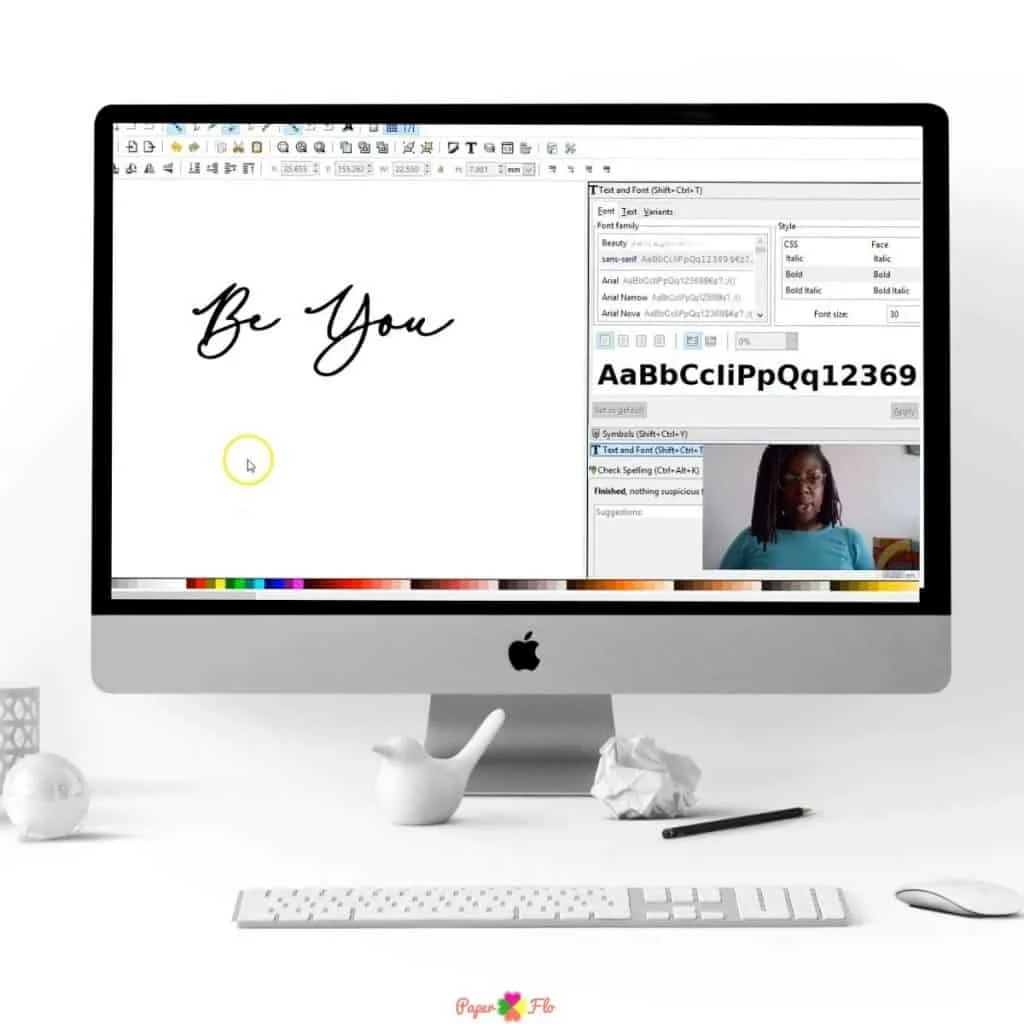


You’ll also learn how to transfer your drawings to your craft projects and get better use from your Cricut or Silhouette machine.
Deleting layers is no mystery for you know. You can also merge layers instead of deleting them if you want to keep everything together. Just ask yourself which method works best for your needs.
Make sure to save this to your favorite Inkscape board on Pinterest. Click the link below to save it for later.
Feel free to add a comment to the pin to let me know which of these techniques you tried.
