
Here’s How to Keep Text in Place on Cricut
Are you making a Cricut project and want to know how to keep text in place on it? Whether you’re a beginner or an experienced user, you’ll find that Cricut Design Space offers a range of options to help you adjust the text layer to create beautiful projects.
In this blog post, I’ll go over 5 easy ways to keep text in place when you’re making projects in Cricut Design Space.
Tools
- Cricut Design Space
- Cricut Access (here are car and text cut files similar to the ones I use in this tutorial)


I get commissions for purchases made through some of the links in this post. There is no extra cost to you. See my full disclosure here.


1. Layers Panel
First up is the layers panel. In the layers panel, you can select different layers and simply group them together using the group button.


2. Weld Tool
The weld button is another great way to adjust the placement of your design when using your Cricut machine. This feature allows you to join two or more text boxes together into one. This makes sure that your text stays in the same place, no matter how much you resize it.
3. Attach Tool
The attach button is my favorite and probably the easiest way to move and adjust svg files on your Cricut project. The attach feature lets you attach a single layer to another layer. This is especially useful if you have a single word that needs to stay with the rest of the text.


4.Text tool
The text tool is great for manually adjusting any font designs that you import.
With this feature, you can add text to your project and adjust the text size by simply dragging the corners of the text box. You can also adjust the font, as well as the color and the letter spacing using the dropdown menu. This is an easy way to get different results with the same default font file.
If you’re afraid to use advanced options, then this is an easy way to make sure that your text is always in the exact place you want it.


5. Slice Tool
The slice tool is another great way to keep text in place when using your Cricut machine.
This feature allows you to separate a single image or text into several different pieces.
This is especially useful if you have text that needs to be divided into different colors or different fonts.
How to Keep Text Together Using the Attach Function


Here are a few easy ways to keep text together in Cricut Design Space.
Materials
- Cricut Design Space
- Cricut Access
Tools
- font files
- car svg file
Instructions
- Open up a new canvas on Design Space
- Upload your text designs or create a design using the text tool
- Change the colors if necessary using the color menu


- Go to the Layers Panel in the right-hand corner


- Select the individual layers of text from the layers panel


- Click on the attach button and the text will be attached together.
Notes
You can find the same design files that I use in Cricut Access
Recommended Products
As an Amazon Associate and member of other affiliate programs, I earn from qualifying purchases.
More Options
Looking to add a bit of flair to your project? Script letters and cursive fonts are both great options. These fonts add a unique and eye-catching look to your project, while still keeping the text in place. You can also use free fonts, as well as individual letters to add a personal touch to a new project.
Will this Work on Mobile?
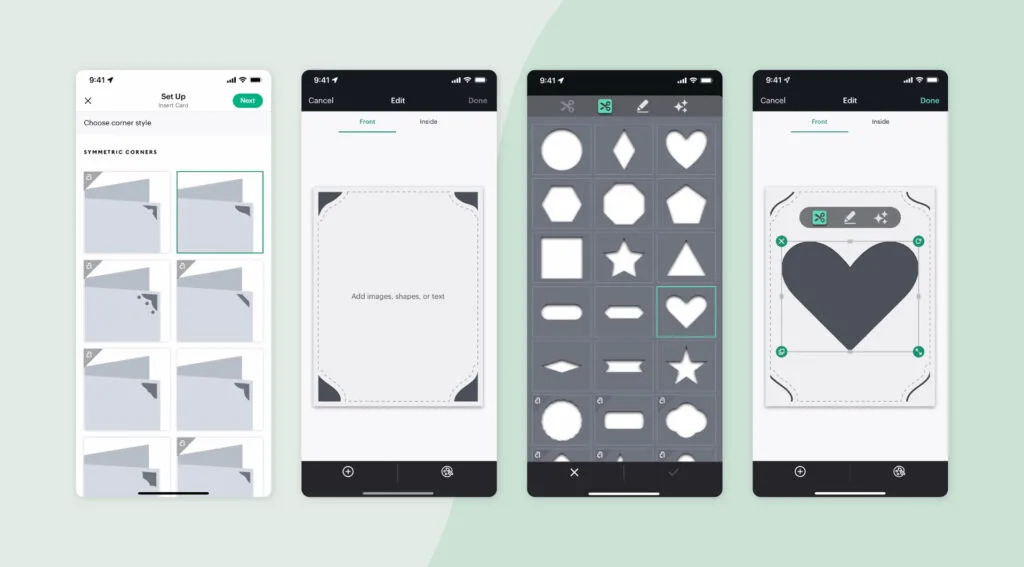
For those that have a Cricut Maker, you’ll be happy to know that you can also edit text on the design space canvas by using the mobile app. The app allows you to easily adjust the text size, color, font, and letter spacing without ever having to be tied down to your computer.
Finally, if you get bored of your same old system fonts, you can try out new ones when you start a Cricut Access subscription. Users get over 300 design elements and Cricut fonts.

Conclusion
From the layers panel to the attach tool, to the mobile app and free fonts, there are plenty of options to help you create Cricut projects with precise text. So don’t hesitate to give it a try and see what works best for you!
Whether you’re a beginner or an experienced crafter it’s good to change things up and try different options every once in a while.
Need more help? Here’s another great tip, use apps to quickly make cut files.
