
Navigating the Glowforge app can feel a bit like that moment when you download a new app to your phone – there’s excitement about the possibilities it holds, but then you start to freak out because now you have to figure out how to use it correctly.
Get ready to learn the ins and outs of the Glowforge app. It’s a key tool for anyone looking to bring their crafting ideas to life in an easy way.
Whether you’re a DIY newbie, you’ve already started your side business, or a stay-at-home mom looking to create unique gifts, I’ll show you how to figure out things like managing time, budget constraints, and the learning curve of new updates and features of the app.

Top 3 Essential Tips for Using the Glowforge Print Web App
- Ease Into It with Proofgrade Materials: Just like finding that perfect chocolate chip cookie recipe for your first bake, starting with Proofgrade materials on your Glowforge makes things so much simpler. You’ll get those precise, clean cuts without having to guess the settings.
- Join the Glowforge Community: Imagine a coffee chat with fellow crafting enthusiasts – that’s what the Glowforge community is like. It’s a fantastic spot to swap ideas, ask questions, and even show off your latest creation.
- Keep Organized with Smart Folders: Think of smart folders in the app like your craft room drawers, neatly storing all your designs. It’s a game-changer for keeping your projects organized and right at your fingertips.
What’s Your Laser Biz Style?
Take this 30-second quiz to find out which laser engraving business model is right for you based on your style.


Navigating the Glowforge App
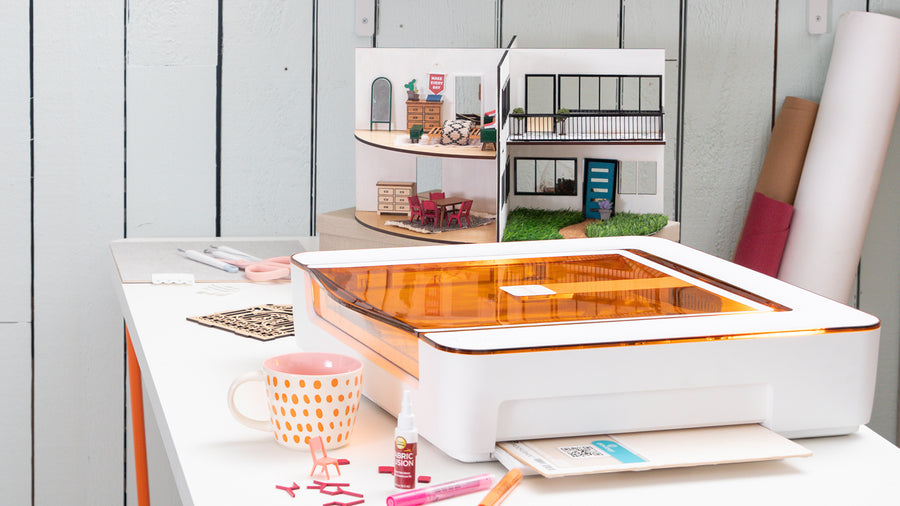
The Glowforge app, which is called Glowforge Print, is your central hub for all things related to your Glowforge machine.
Whether you use a Glowforge Aura, Glowforge Plus, or the Glowforge Pro, it’ll work for all of them. Oh and did I mention that it’s free? Yup, there’s no cost to use the app.
This web interface is surprisingly user-friendly, making it easy for new Glowforge owners to start their first project.
Uploading Designs
You can upload SVG files or other compatible file formats directly in the app. Adobe Illustrator and my personal favorite, Inkscape, are great tools for creating your own Glowforge-compatible files.
You can use designs made with the following software programs:
- Adobe Illustrator
- Inkscape
- CorelDraw
- GIMP
- Adobe Photoshop
- Autodesk 360
- Sketchup
Exploring the Interface
The Glowforge interface is intuitive, allowing you to adjust settings with the push of a button. From resizing to customizing power and speed, everything is at your fingertips.
Initial Setup and Support
Setting up your Glowforge laser cutter is a breeze. After unboxing, simply follow the step-by-step instructions on the app website page to use the Glowforge app.
You need to be a Glowforge owner and login with your email and your password. New Glowforge owners of course need to create an account first.
The app was previously available for iOS in the App store but that’s no longer the case.
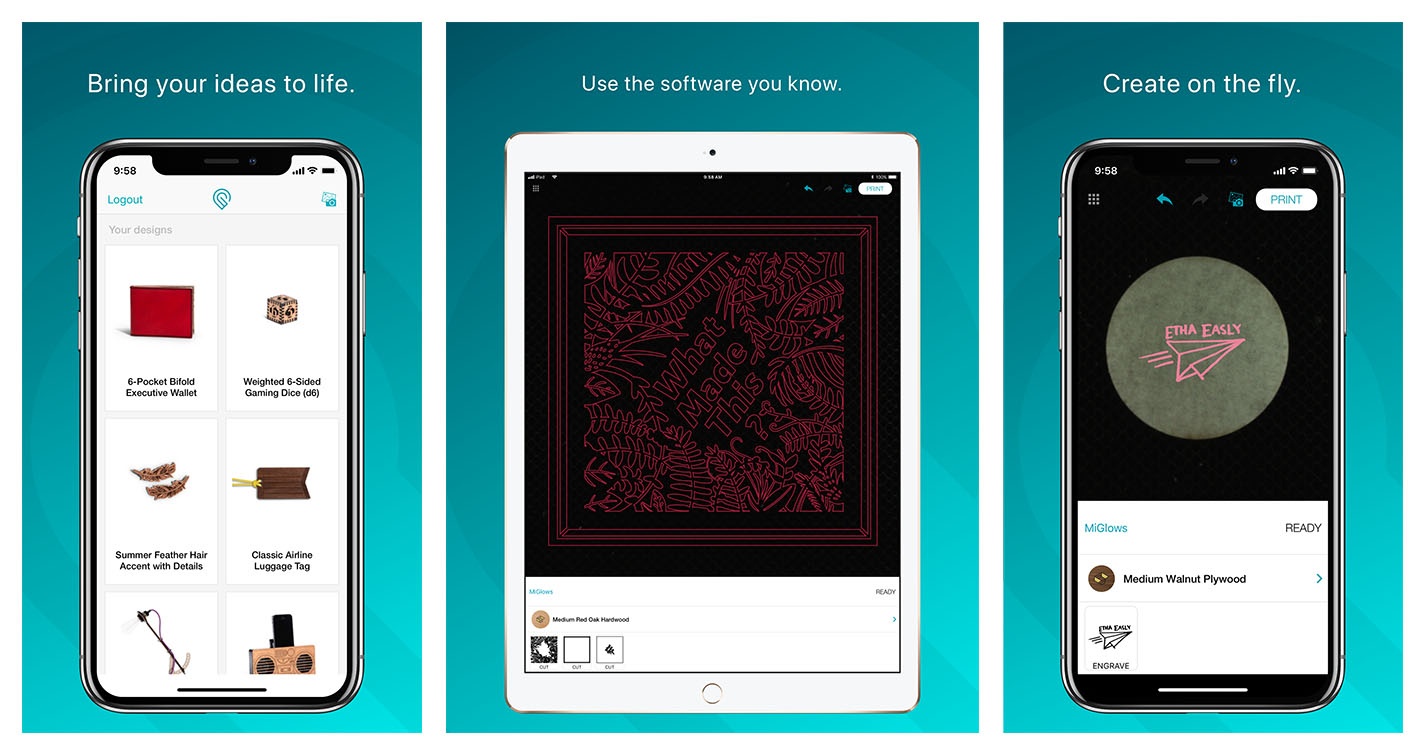
Since it’s a web based app, it’s compatible with:
- Mac
- PC
- Android
- iPhone
- iPad
- Android tablet
- Chromebook
Safety First
Don’t forget to set up your Glowforge air filter or ensure proper ventilation.
Joining the Community
The Glowforge community is a great place for fast answers and support. Whether you’re a Glowforge expert or just starting, the community forums offer unlimited access to a wealth of knowledge.
Sharing Designs
Engage with others by sharing your own designs or getting inspiration from theirs.
Shopping for Materials
Your Glowforge can work with a wide variety of materials, but starting with Proofgrade materials guarantees perfect settings for precise cuts.
Exploring Materials
From wood to acrylic, experiment with different materials from the hardware store or use Glowforge’s own line of materials.
Exploring and Using Designs
The catalog section is a treasure trove of pre-made designs, perfect for those who are just beginning or looking for new inspiration.
Digital Art
You can also import your own creations from digital art software in the Glowforge web interface.
Since AI is on everyone’s list these days, Glowforge also has an AI option to make great projects.
Using the Magic Canvas option, you make all kinds of different designs from your imagination.
App Dashboard and Menu
The updated App Dashboard in the Glowforge app provides a streamlined experience, making it easier to start a new design or revisit past projects.
Quick Access
With just a few clicks, you can access recent designs, tutorials, and more.
Smart Folders for Organization
Smart folders in the app help you organize your projects efficiently. Think of them as your digital crafting folder, where you can categorize and find your designs easily.
Customizing Your Experience
You can add your designs to these folders, customize their order, and even create new folders to suit your workflow.
Dynamic Default Folders
The app includes default folders that update with new designs from the Glowforge catalog, giving you fresh inspiration every time you log in.
Staying Updated
These folders ensure you’re always in the loop with the latest from the Glowforge team, helping you make the most of your crafting journey.

Conclusion
So, you’ve got your new Glowforge and are all set up with the app, right? It’s pretty exciting, but I know it can be a bit overwhelming figuring out where to start, especially with all those creative ideas buzzing around.
Don’t worry, you’re not alone in this! A great place to begin is with acrylic crafts—they’re fun, pretty, and surprisingly easy to make once you get the hang of it.
If you’re looking for some guidance on this, I’ve written a post all about laser cutting crafts for beginners. It’s packed with tips and project ideas that are perfect for getting your feet wet.
