
Now, I know what you might be thinking – working with Cricut, especially on an Android device, can seem like a daunting task.
If you’re not exactly tech-savvy, just the thought of it may send a wave of frustration through you.
But let me assure you, there’s no need to feel overwhelmed. I’m going to show you how to navigate this seemingly complex process and turn it into a walk in the park!
I’ll be walking you through the entire process of how to upload images to your Cricut Design Space using an Android device. Trust me, it’s easier than you might think!

I get commissions for purchases made through some of the links in this post. There is no extra cost to you. See my full disclosure here.
How To Upload Image Files To Cricut Design Space On Android
So, you’ve decided to take the plunge and start using the Cricut app on your Android phone? Excellent choice! 🎉 Here’s a quick rundown of the process:
- 📲 Download the Cricut app from the Play Store.
- 🔒 Sign in to the app with your credentials.
- ➕ To start the upload process, tap the plus icon and select “upload.”
- 📷 You’ll be given three choices: snap a new photo, choose one from your library, or open previously uploaded images.
- 🖼️ For this guide, we’ll select “open uploaded images.”
- ➕ Pick the image you want to upload and add it to the app.
- 📤 Voila! Your image is now uploaded to Cricut Design Space on your Android device.
Download the Cricut App from the Play Store
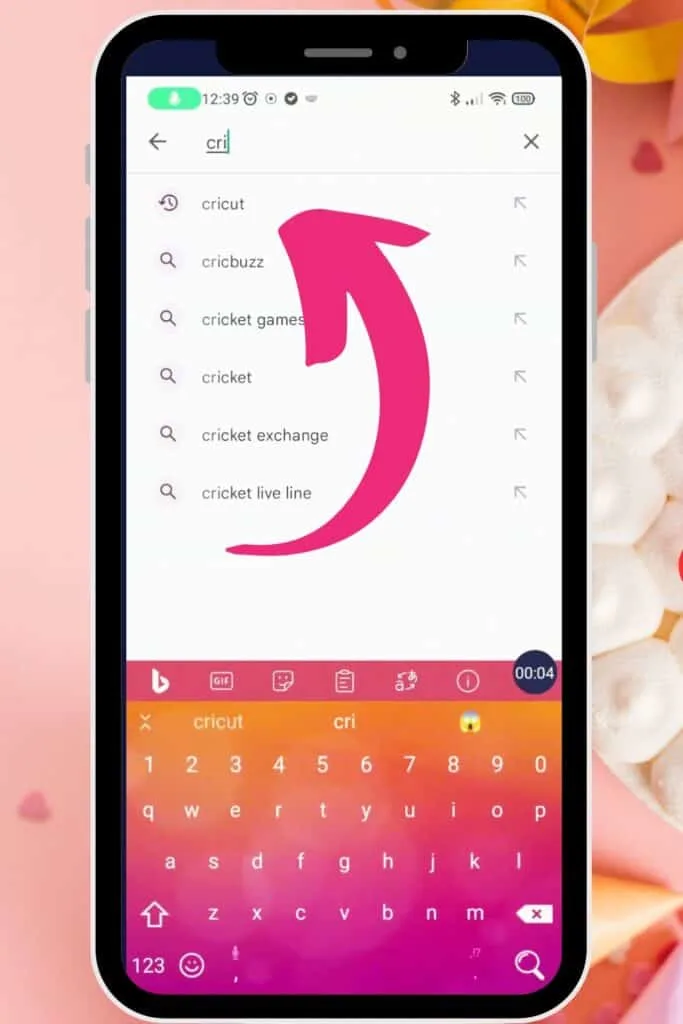
The first step in your Cricut adventure is to download the Cricut app. You can easily find this in the Google Play Store.


Simply type “Cricut” into the search bar, hit install, and the app will automatically download onto your Android device.

Sign In to the App With Your Credentials
Once the Cricut app is successfully installed, open it up and sign in. You’ll need to use your existing Cricut account credentials. If you don’t have an account yet, don’t worry – it’s easy and quick to set one up right within the app.


Start the Upload Process
Ready to upload your first image? Great! In the Cricut app, you’ll see a plus icon. Tap on this, and a menu will appear.


From there, select “upload” to initiate the process of adding your own image.


Choose Your Image Source
Here’s where the fun begins. You have three options for where your image can come from: you can take a new photo, choose one from your phone’s gallery, or open an image you’ve previously uploaded to the app.


Select ‘Open Uploaded Images’
For this guide, let’s say you’re using an image that’s already stored on your device. In this case, you’d select the “open uploaded images” option. This will allow you to browse your phone’s storage to find the image you’d like to upload.
Pick and Add Your Image to the App
Navigate through your device’s folders until you find the image you want. Once you’ve found the perfect one, simply tap on it to select it, and then confirm your choice to add the image to the Cricut app.
Upload Your Image to Cricut Design Space
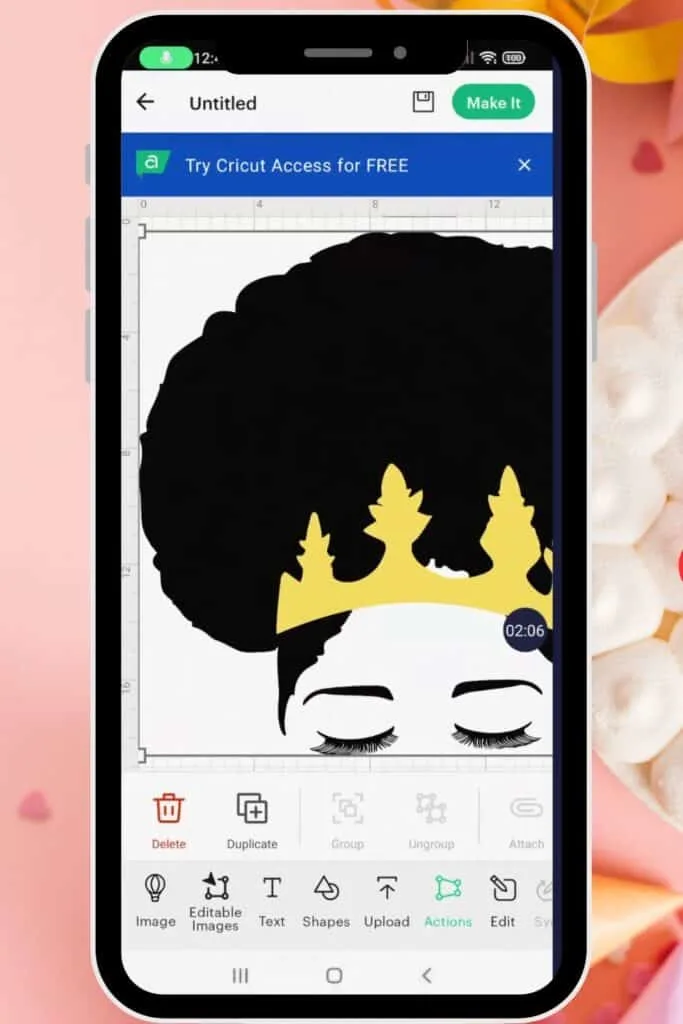
And just like that, your image is now in Cricut Design Space! From here, you can edit the image, incorporate it into your designs, or save it for later. You’ve just taken a big step towards becoming a Cricut master!

Saving Images From Cricut Design Space To Android
But what if you want to save that beautiful design you’ve just created or edited in Cricut Design Space to your Android device? Don’t worry, we’ve got you covered! Just follow these steps:
- Open your project in the Cricut Design Space.
- Tap on the image you want to save.
- Click the “Save” button and choose your preferred storage location on your Android device.
- Now, you can access this image anytime you want, even when offline!
Editing Uploaded Images In Cricut Design Space
So, you’ve uploaded an image, but it needs a bit of tweaking? Here’s what you can do:

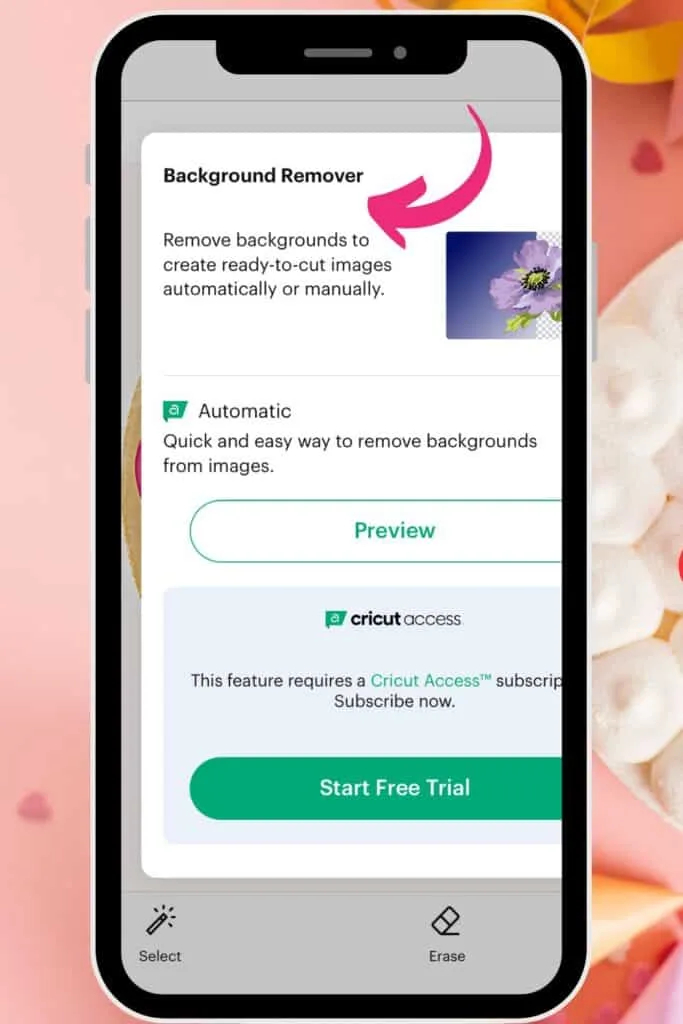
- If you’re a Cricut Access member, you can make use of the Background Remover feature. Just hit “Select” and tap the background to make it transparent.
- The eraser tool is your friend for removing any unwanted elements from your image.
- If you’re not a Cricut Access member, but have a Canva Pro account (like me!), you can use Canva’s handy background remover like I did in the video below. Trust me, it’s super easy and effective!
- You can even make and edit svg files in Canva.
Tips For Using Uploaded Images On Cricut Design Space
Once you’ve perfected your image, it’s time to put it to work! Here’s a list of creative projects where you can use your freshly uploaded image:
- puff vinyl t-shirts
- Tumblers
- Birthday cards
- Coasters
- Tote bags
The sky’s the limit!
Frequently Asked Questions
Absolutely! You can use Cricut Design Space on an Android phone. Simply download the app from the Play Store and sign in with your credentials.
If you’re facing issues while uploading an image to Cricut Design Space, make sure the file format is compatible. If the problem persists, try re-installing the app or contact customer support.
Yes, you can! Cricut Design Space supports jpg images, so you’re good to go.
Indeed, Android devices do support SVG files, which can be beneficial for creating high-quality designs on Cricut Design Space.
Conclusion
And there you have it! Uploading images to Cricut on Android is as simple as that. With a few clicks, you’ll be able to bring your creative visions to life.
So go ahead, try it, and make something fun. Need some ideas? Check out my post on easy Cricut beginner projects.
