
In the world of crafting, Cricut is a game-changer. But, how do you upload SVG images to Cricut on your iPhone?
Don’t worry, I’ve got you covered. This guide will walk you through the process, step by step.
Want to see how to do this? Scroll down to watch the quick video!


I get commissions for purchases made through some of the links in this post. There is no extra cost to you. See my full disclosure here.
How to Upload SVG Files to Cricut Design Space on iPhone
First things first, you need an SVG file. This could be a file you’ve purchased or one you’ve created yourself. Once you have your file, save it to your iPhone’s files.
To do this, simply hold the chosen image and click “Add to Photos”. This will save the image to your iPhone, ready for the next step.

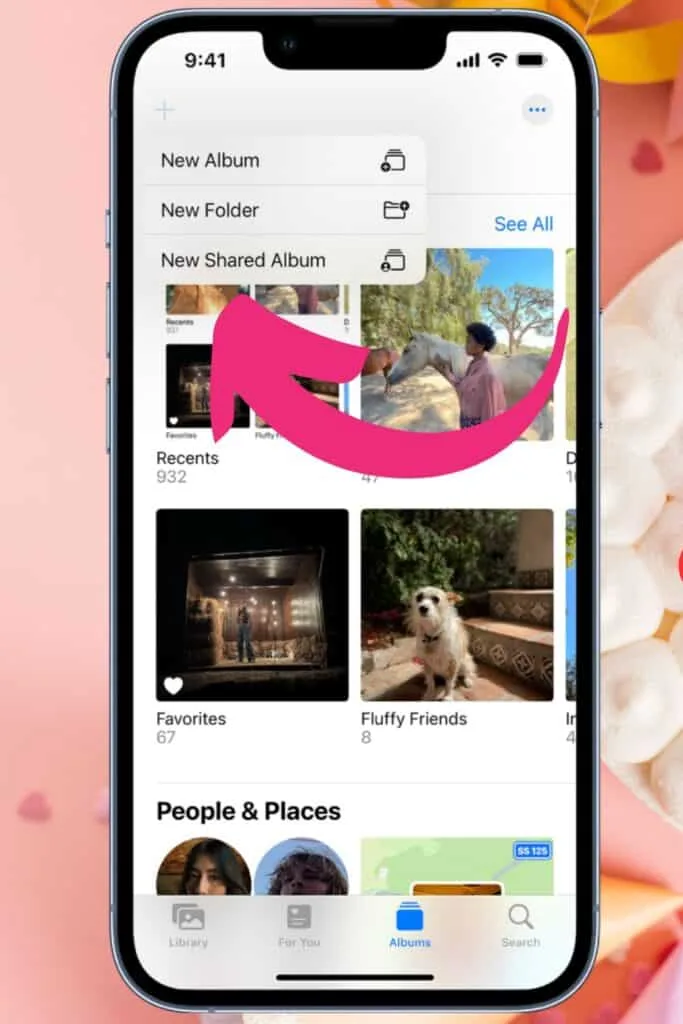
Using Image Files with Cricut on iPhone
Next, open the Cricut Design Space app on your iPhone. If you haven’t downloaded it yet, now’s the time. Make sure you’re signed in, then click on the “+” button to start a new project.


Once you’re in, click on “Upload” at the bottom of the screen. Select “From Photo Library” and choose the SVG image you just saved.


Saving Images from Cricut Design Space to iPhone
If you have Cricut Access, you can use the Background Remover feature. To do this, click on the “Select” button and tap the background of the image to make it transparent.
Use the eraser tool to remove any unwanted parts of the image. Once you’re satisfied with the image, name it and click “Done”.


Managing Uploaded Images in Cricut Design Space
Now, it’s time to choose the material you’ll be cutting. Click “Cut” and then “Upload”. This will upload your chosen SVG image into the Cricut Design Space, ready for you to use in your projects.

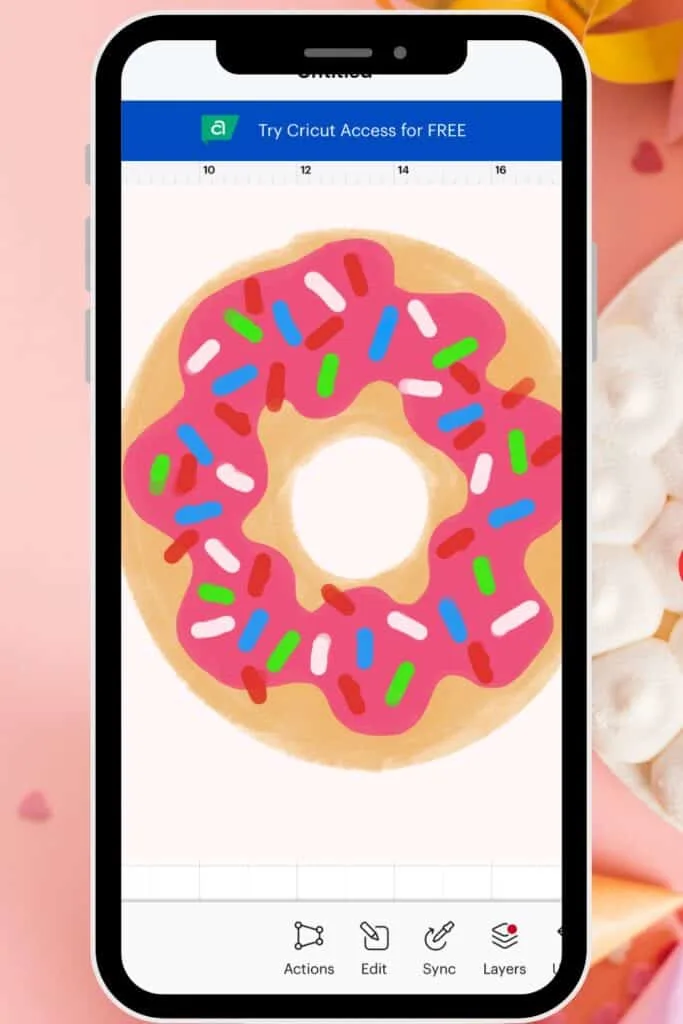
Troubleshooting Issues with Image Uploads on Cricut Design Space
If you don’t have Cricut Access, you can still remove the background using Canva. This requires a Canva Pro account.
Since I have a Canva Pro account, this is what I use. You can remove the background in one click or erase the parts you want to get rid of.
Sometimes you can run into connection issues. If you do, then check out this post on how to connect to Cricut Design Space.
7 Steps to Upload SVG Files to an iPhone


Here are 7 simple steps for uploading SVG files to an iPhone. From managing your images to troubleshooting common issues, I've got you covered. Start creating stunning projects today with Cricut Design Space!
Materials
- Cricut Design Space iOS app
Tools
- iPhone
- Canva
- Cricut Access
Instructions
- Choose an SVG file and save it to your iPhone.
- Open the Cricut Design Space app.
- Start a new project by clicking the "+" button.
- Click on "Upload" and select "From Photo Library".
- Choose the SVG image you saved.
- If you have Cricut Access, use the Background Remover feature to make the image transparent.
- Click "Cut" and then "Upload" to add your image to Cricut Design Space.
Recommended Products
As an Amazon Associate and member of other affiliate programs, I earn from qualifying purchases.


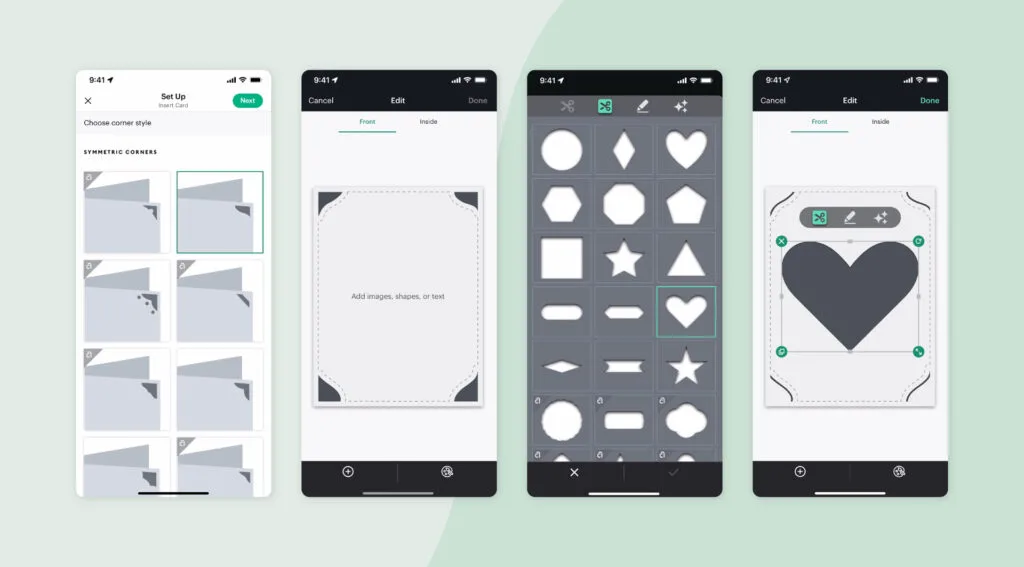
7 Steps to Upload SVG Files to an iPhone
- Choose an SVG file and save it to your iPhone.
- Open the Cricut Design Space app.
- Start a new project by clicking the “+” button.
- Click on “Upload” and select “From Photo Library”.
- Choose the SVG image you saved.
- If you have Cricut Access, use the Background Remover feature to make the image transparent.
- Click “Cut” and then “Upload” to add your image to Cricut Design Space.


Conclusion
Uploading SVG images to Cricut on your iPhone is a simple process that opens up a world of crafting possibilities. Whether you want to upload svg files that you made, or one that you got online, you’ll be creating stunning projects in no time.
Once you upload the file to Design Space via your phone, you can continue to work on your Cricut project on a computer or on your iPad.
FAQ
Absolutely! You can use your iPhone to upload images to Cricut Design Space.
There could be several reasons for this. Make sure your image is in the correct format and that you’re using the latest version of the Cricut Design Space app.
Yes, you can! You can upload your own SVG or PNG images to use in your projects.
SVG or PNG formats work best for uploading images to Cricut.
