
It’s possible to convert an image and create svg files for Cricut or Silhouette
You can use jpg or png image files and turn them into svg files to use with your cutting machine.
Learn how you can convert a basic image file, for example a jpg or png file, to svg format that you can use in your Cricut or Silhouette cutting machine.
Tools You Need
Ready to get started? Once you create your cut files, you’ll need the right tools to make your shirts, mugs, and other crafts. Here are my top 3 picks for diy crafting from home.
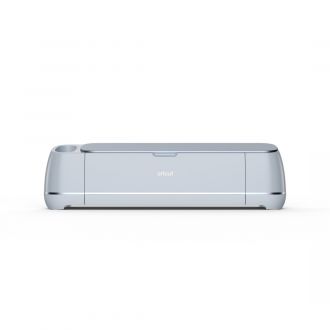
Turn your svg files into crafts right out of the box with Cricut Maker 3

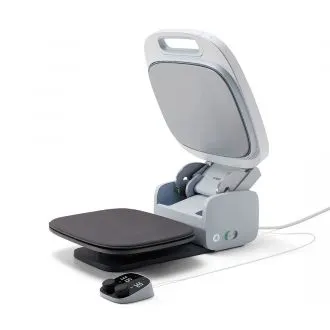
Reduce the guesswork with this perfect professional heat press made for home use

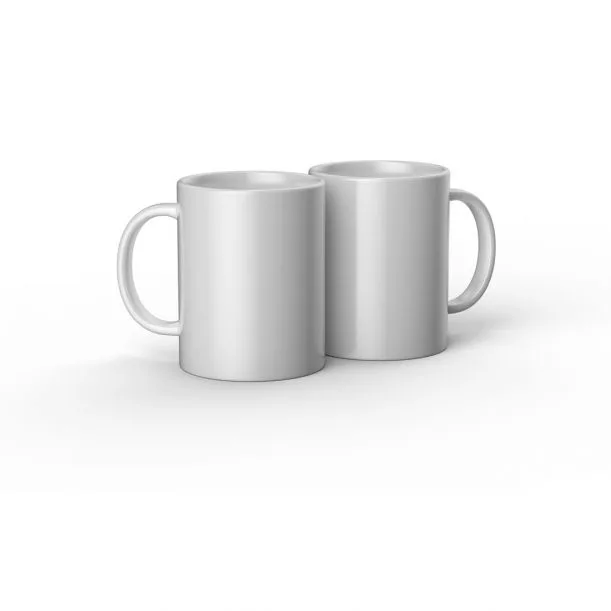
from mugs to t-shirts, tote bags, and caps, here are smooth blanks ready to use with your cut files
Click to watch the quick video

I get commissions for purchases made through some of the links in this post. There is no extra cost to you. See my full disclosure here.
Difference between svg, png and jpg
First, a little background information for you.
Most image files are in raster or bitmap form.
This means that they are images made with pixels (a small dot or point of color) that is displayed on a screen.
“In computer graphics, a raster graphics or bitmap image is a dot matrix data structure that represents a generally rectangular grid of pixels (points of color), viewable via a monitor, paper, or other display medium. Raster images are stored in image files with varying formats.”
Source: wikipedia.org/wiki/Raster_graphics
Using svg files
The problem with this format is that if you want to enlarge the image, the end result will be grainy and highly pixelated.
This is not so great when you need to transfer that image to a t-shirt that you want to customize.
A better option is to use an svg file. Svg stands for scalable graphic vector.
A vector file can be enlarged or reduced without losing any quality to the image.
Basically, you won’t end up with blurry images on your crafts.
If you only have a jpg or a png image, you can still use the image for your project.
All you have to do is convert the image to an svg format.
It’s best to use an image with a clear background. An image with a complex background will be harder to convert.
How to use Canva to edit images
You can clear up the image background using an online editor like Canva.

Online method to make svg files
I’ll show you how to do this in 5 steps using a free online graphic editor program.
This is a no-frills method that will give you a simple svg file that you can upload to your cutting machine.
You will be able to use it like any other svg file because, *hint, hint… it is a real svg file.



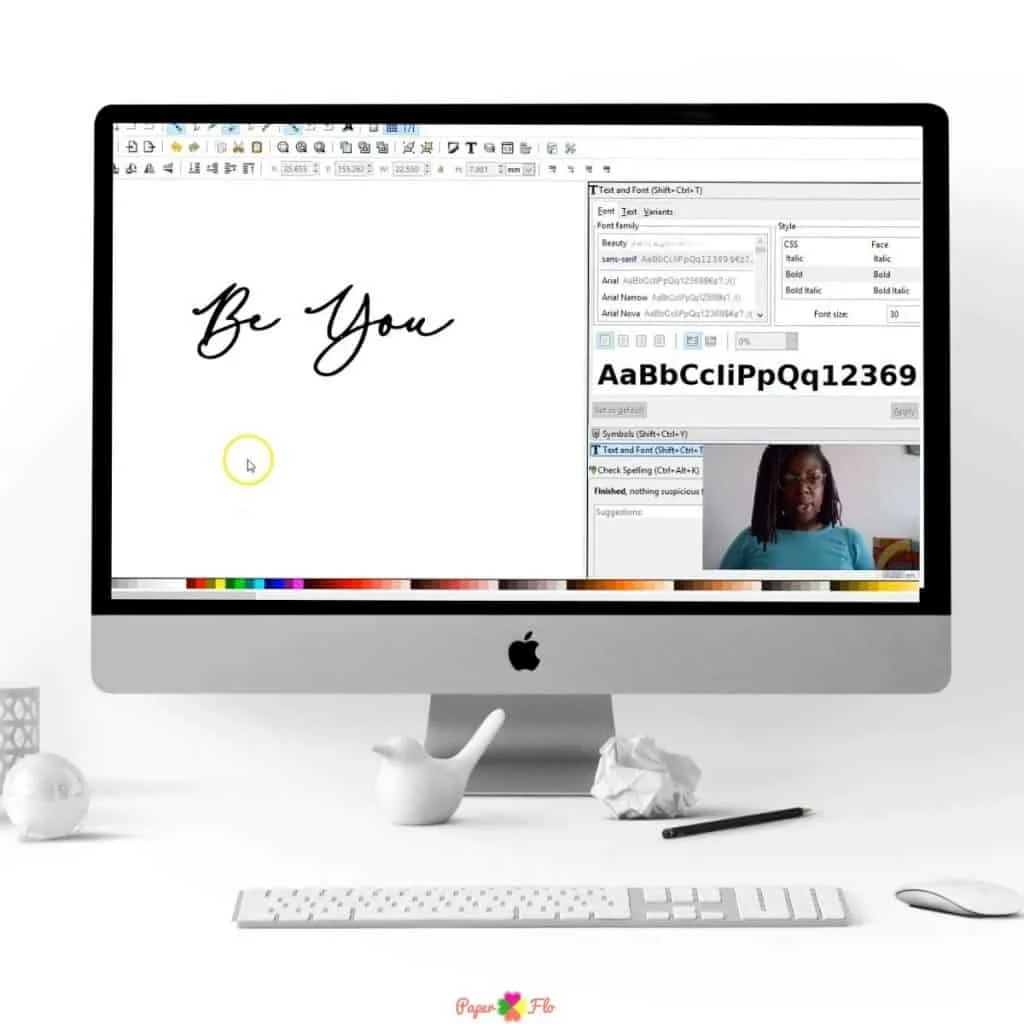
I’ll be using png files from the Hope Collection of my Digital SVG bundle.
The bundle comes with 10 files (svg, png, jpg and dxf format) to use in any craft projects, personal and business usage included.
Browse the new collection and find out more about the svg bundle.


The Pros and Cons of Online Image Converters
Pros of online image converters
- No expensive software needed. It’s Free!
- No downloading of more software programs to your computer
- It’s quick and takes less than 5 minutes.
Cons of online image converters
- No color option available. Your svg will be black, but you can recolor it using a free program like Inkscape.
- Loss of layers. The converted svg is only one layer. If there are other layers stacked on top of each other, you will get one merged layer.
Software Programs to Make SVG Files
For more complex svg files you may want to look into other editing programs.
There are lots of software programs that are available to make svg files and to convert image files into svg files.
Payable Graphics Editor
You may already be familiar with the Adobe suite of products like Photoshop and Illustrator.
These are considered to be among the top professional level of graphics editor programs.
They are widely used by designers and artists.
If you want to use any of these programs, you will have to pay for a monthly subscription.
Free Graphics Editor
Personally, when I need to make an svg file or convert an image, I use Inkscape.
But I have used an online converter in a pinch, like when I was on vacation and away from my computer.
Inkscape is an open source graphics editor program, which means it is free to use it.
The downside is that there is no customer service to contact if you have questions.
But, the upside is that there are many forums with users that are able to answer almost any question.
What do you Need to Create Files?
Here is my list of 5 beginner supplies for creating svg files for Cricut.
- Computer
- Graphic tablet (this is what I use)
- Graphics editor program
- Cricut Design Space
- Cutting machine


Import SVG files to Cricut
Once you know how to convert your image files to svg format, you will be able to make your own svg files and cut files for your crafts.
It’s so much fun when you can DIY the craft supplies that you need.
A really quick method to convert a file to svg format is to change the suffix or filename extension.
This just means that you can select the file, click rename, and change the extension to svg.
This doesn’t always work, but it’s worth a try.
Once you have your cutting machine (like this one from Cricut) set up, you can upload your new svg file.
You are ready to import the svg file to Cricut (or any cutting machine software program).
To do this, you will

- open the Cricut Design Space software on your computer.
- Select the .svg file that you just created.
- Click “Open” in the file selector, or drag and drop the file into the Design Space image upload window.


The original png is multicolored.


open the Cricut Design Space software on your computer.

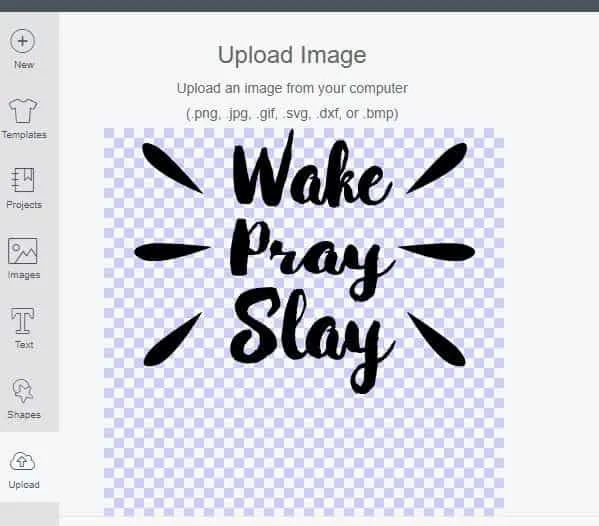
Upload the file into the Cricut Design Space image upload window


Here are instructions on how to upload an svg to Silhouette if you are not a Cricut user.
This method is really a quick and dirty option for when you need a simple solution for converting images.
If you don’t need colored multi-layer svg files then you’ll be fine with this method.
Most likely, you will use different color heat transfer vinyl to get the colors that you want on your project.
Steps to convert an Image
Time needed: 2 minutes
Steps to convert an image to svg file format
- Chrome browser
Open your Chrome browser, go to the Chrome Web Store and enter “File Converter – By Online-Convert.com” in your search bar, then click on add to Chrome. You can also just go straight to the website, https://image.online-convert.com/. I like having the shortcut handy in my browser bar.

- Choose an upload option
Scroll down and click on “Convert image to the SVG format”. Upload your image using any of the four options;
– Choose Files
– Enter URL
– Dropbox
– Google Drive

- Convert file
Click “Start Conversion”. Optionally, you can make further changes before converting your file if you would like. For instance, you can crop the image to convert only the part that you need. It’s up to you. If you don’t need any further changes, just click on start conversion.

- Get downloaded svg file
Your file is now converted to svg. It can be found near the bottom menu of your computer. If you don’t see it right away, look in
the Downloads file of your computer.

- Import SVG to Cricut
The next step is to import the svg to Cricut Design Space
Do you use any other programs to convert your files?
Let me know which online image converter program is your favorite.
Don’t forget to download the PDF checklist to read later.
What to do with your new svg
You’re done. The hard part is finished and you are one step away from cranking up your Cricut machine to start pumping out those cute t-shirts.
That was simple! Now you have an svg file that you can work with and cut your designs from.


Grace
Monday 10th of October 2022
There is no option in online convert for converting to svg
Naa Ardua
Tuesday 11th of October 2022
Hi Grace,
I just checked it today and I still see the convert to svg option. It's under the Image converter category. If you scroll down the page you should find it.
Michelle
Wednesday 2nd of March 2022
It worked but only converted part of the design the rest is missing:/ They were rainbow designs I purchased and didn't notice they were for sublimation.
Naa Ardua
Wednesday 2nd of March 2022
That's happened to me too if I use a design that has a lot of texture. This method works best for really simple flat designs.
Laura
Tuesday 5th of October 2021
Thank you so much for the quick and easy online converter tool! I converted a jpeg myself on cricut design space but a lot of details were lost. The online converter kept the image quality perfect!
Naa Ardua
Tuesday 5th of October 2021
Yes! That's what I love about the converter. It's really handy.
Debrays Wreaths and Things
Saturday 10th of July 2021
This is the best information I have found on SVG files among other great information found here. I will definitely be saving this Pinterest 📌 Thanks for sharing all your great knowledge with us. Can't wait to read more.
How to Cut a Multi Color Design in Cricut Design Space - Paper Flo Designs
Tuesday 19th of January 2021
[…] convert an image to svg, use a graphic design software program like Inkscape or Adobe Illustrator or a website that will […]