
Cricut Weld vs Attach: What’s the Difference Between the Two?
In Cricut Design Space, there are a few ways to take your basic shapes and turn them into new shapes. The Cricut weld tool and the attach function are two important tools that will help you do this.

What Does Weld Mean?
Weld means to merge in Cricut Design Space.
The “Weld” function merges two or more overlapping separate shapes into a single, combined shape.
This is useful if you want to import new designs from Cricut Access that consist of multiple shapes and want to combine them into simpler shapes.
The “Attach” function, on the other hand, is used to group multiple shapes together so that they can be moved and manipulated as a single unit. This is useful if you want to keep several shapes together but still be able to move them independently.

Using the Weld Tool
Weld is a useful tool for combining different shapes in selected layers. You can find the button at the bottom of the layers panel.
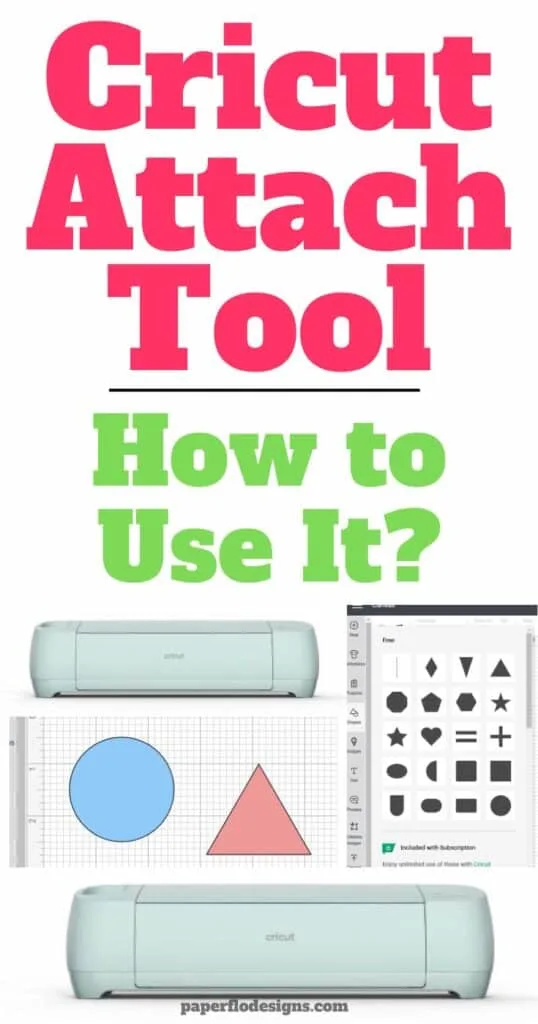
For example, if you have a design that consists of a circle and a triangle, you can use the “Weld” function to combine the two shapes into a single welded image.
Once you use this function you’ll see the new image as a weld result in the layers panel.
Watch the video below to see how to use weld and attach
What’s the Difference Between the Attach Feature and the Weld Feature?
If you want to be able to move the circle and triangle together but still be able to manipulate them individually, you can use the attach button to group them together.
It’s important to note that the “Weld” function permanently merges the shapes into a single shape, while the “Attach” function simply groups the shapes together and does not modify the shapes themselves.
How to Attach in Cricut Design Space


Learn when to use the Attach tool in Cricut Design Space.
Materials
- Cricut cutting mat
Tools
- Cricut Design Space
- Cricut Access
Instructions
- Open a new canvas screen in Design Space
- Click on the Shapes tool in the menu panel
- Select shapes to use, use your own designs, or choose designs from Cricut Access
- Click and drag a single image onto another image or shape so that they overlap
- Click and drag to select both images
- Click on the attach button
- Both shapes are now attached
- See the result at the top of the layers panel
Recommended Products
As an Amazon Associate and member of other affiliate programs, I earn from qualifying purchases.
I get commissions for purchases made through some of the links in this post. There is no extra cost to you. See my full disclosure here.
What is the difference between attach and flatten on Cricut?
What does the Attach function do?
You already know that the Attach tool is used to group multiple shapes and letters together so that they can be moved and manipulated as a single unit. This is useful if you want to keep several shapes together but still be able to move them independently.
For example, if you have a design that consists of a circle and a triangle, you can use the “Attach” function to group them together. The resulting group will contain both the circle and triangle, and you’ll be able to move and manipulate them as a single unit. However, you’ll still be able to select and edit the individual shapes within the group.
What does the Flatten function do?
The “Flatten” function, on the other hand, is used to merge multiple layers into a single layer. This is useful if you want to combine multiple design elements into a single layer for cutting or printing. For example, if you have a design that consists of multiple text and graphic elements on different layers, you can use the “Flatten” function to combine them all into a single layer.
It’s important to note that the “Attach” function simply groups the shapes together and does not modify the shapes themselves, while the “Flatten” function merges multiple layers into a single layer and can’t be undone.
Conclusion
Both the weld and attach tools give Cricut Design Space users flexibility when it comes to using cut files. The cricut machine will read the score lines based on how they are placed. Overlapping cut lines will give you different results on the cutting mat.
These two tools will help you figure out the best way to turn any individual objects into an attached image. It’s a great way to avoid surprises before you cut your vinyl.
Want to save this for later? Pin it to your favorite DIY board on Pinterest!
Feel free to save this blog post to your Cricut board or write a comment if you tried it.
More creative craft ideas!
If you loved this list of ideas, I hope you will try my other easy fixes for Cricut issues like how to use the unweld function and how to turn script font into cursive letters.
