
5 Steps to Fix Cricut Image Load Failure
I’ve been flooded with emails recently from some of you struggling with the pesky error messages that pop up when you try to upload your precious SVG files to Cricut Design Space.
Believe me, I’ve been in your shoes!
So, today, I’m going to break down why this happens and arm you with handy tips to fix this problem once and for all.

I get commissions for purchases made through some of the links in this post. There is no extra cost to you. See my full disclosure here.
1. Zip Files Can Cause Problems
One of the primary culprits behind the dreaded “unsupported file type” error is attempting to upload your SVG files while they are still in a zip format. Here’s an important note to remember:
- You need to extract the files before successfully uploading them.
Think of it as trying to eat a candy bar while it’s still in its wrapper—it’s a no-go!
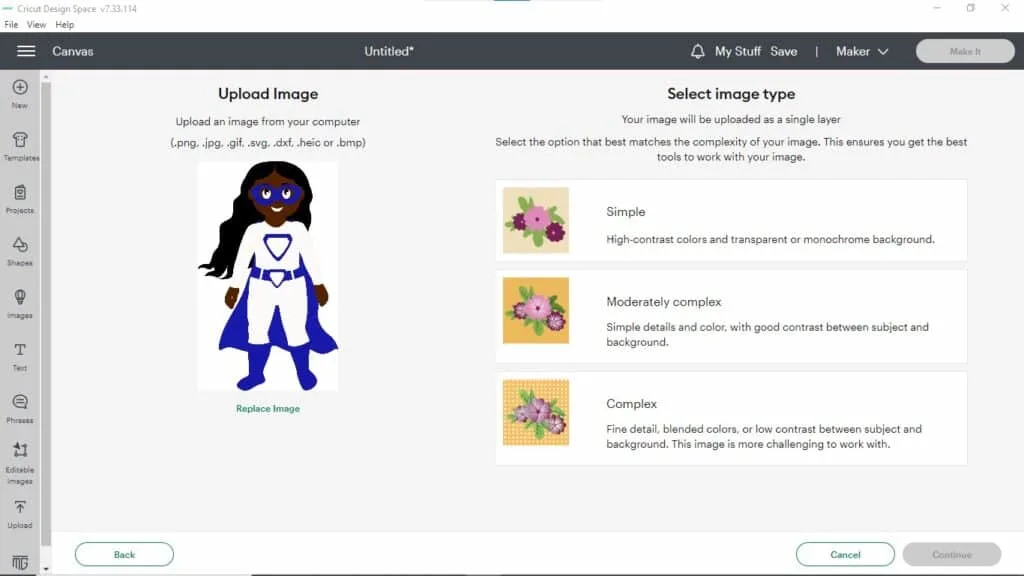
2. Choose the Right Upload Method
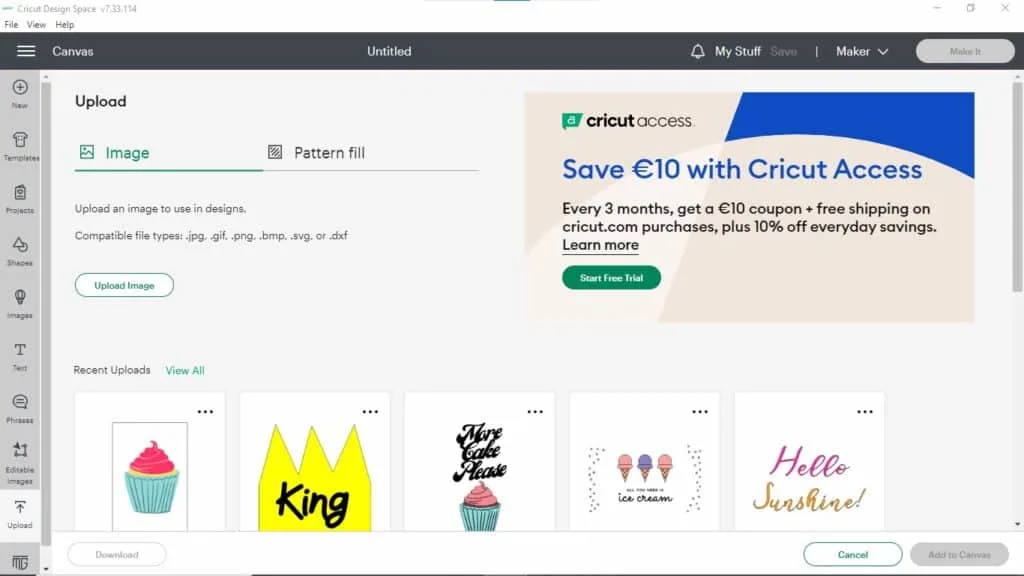
Some of you might unknowingly click on the “Upload Image” button, not realizing it’s not made for SVG files. Sounds like a silly slip-up, right? I completely understand! Always remember:
- Use the correct methods, such as browsing or drag-and-drop, to upload your files.
Visualize it as placing that unwrapped candy bar in your mouth and not just holding it in your hands to melt.

3. Selecting the Wrong Files
Speaking of zips, another blunder I’ve noticed is when crafters unintentionally select the entire zip folder instead of the actual SVG files within it.
It’s like trying to upload a PDF file instead of the SVG—you’ll get the unsupported file type message once more.
- Be sure to navigate into the SVG files folder and select the right image type.
4. The Importance of File Compatibility
Sometimes, the issue is not about how you handle the files but the files themselves. Cricut Design Space can be a bit picky, and your SVG files need to be in pristine condition.
- It’s as if the software has an eagle eye for perfection!
Tiny flaws can trigger an error. So, if you’re still encountering issues after following all the previous steps, it might be beneficial to contact the original creator of the file or consult some troubleshooting guides provided by Cricut.

5. Other Factors to Consider
There are also other factors that can trigger these image failure messages. Pattern fills, improperly exported text, and linked images—these could all be potential troublemakers.
If you’re using software like Inkscape or Illustrator, there are specific techniques to ensure your SVG files are correctly exported.
- There’s no need to stay frustrated; numerous helpful videos and resources can guide you. Take a look at my video about uploading images and the huge mistake I made.
I sincerely hope this blog post illuminates the reasons behind those exasperating image failure messages when uploading SVG files to Cricut Design Space.
I completely empathize with your struggle. Remember to unzip those files, use the right methods to upload to the Cricut app on your phone or on your desktop computer or to your iPad, and double-check your file compatibility.
And if you’re still hitting a wall, don’t hesitate to reach out to the file’s creator for help. There’s always a solution within reach.
Keep crafting with those cute handmade svg designs, and if this post has been beneficial, please share it by saving it to your craft tips board on Pinterest.
FAQ About Cricut Image Upload Failure
Not all SVG files work with Cricut. It depends on how the file was created and if it’s compatible with Cricut Design Space. For instance, pattern fills, incorrectly exported text, and linked images can cause problems when uploading. It’s always best to download SVG files from reputable sources known to work well with Cricut machines.
To make SVG files compatible with Cricut, you need to make sure they’re properly formatted and exported. If you’re using design software like Inkscape or Illustrator, there are specific techniques to ensure your SVG files are correctly exported. Also, avoid using pattern fills, linked images, and make sure your text is correctly exported. If you’re creating your own SVGs, consider following Cricut’s recommended practices for creating and exporting SVGs.
Both SVG and PNG files can be used on Cricut, but SVG is generally preferred for a few reasons. SVG stands for Scalable Vector Graphics. As the name suggests, these can be scaled up or down without losing quality, making them ideal for projects where precision is needed. On the other hand, PNGs are raster images that can lose quality when resized. However, PNGs are good for intricate, multicolored designs. Your choice should depend on your specific project needs.
