
Did you know that you can add video to svg files in Canva?
If you make svg files and want to show them on your social media pages, you can do it easily with Canva.
What’s really cool is that you can turn your design into a GIF and share it.
I’ll walk you through my step-by-step method in a minute.
I get commissions for purchases made through some of the links in this post. There is no extra cost to you. See my full disclosure here.
Scroll to the bottom of the post to watch the full video
How to use video to sell svg files
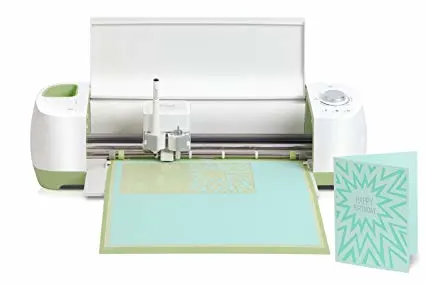
Crafters love to buy svg files to use with their Cricut machine or other cutting machines.
Market places like Etsy, Design Bundles, and Creative Market are where you can find a lot of cut files being sold.


Since there is a lot of demand for these graphics, it’s a good idea to set yourself apart if you sell them.
Pretty much every marketplace is also starting to use video in their listings too.
This brings us to the topic of using video to sell your svg files. It’s a great way to stand out from the rest.

Supplies Needed for SVG
To get started, we’ll open up Canva in our browser. I prefer Chrome but you can use whatever browser extension you prefer.
Canva is an online graphic software editing program.
It’s easy to use. If you’re nervous about techy things, this one will be a breeze.
Canva offers a free version and a professional version. We’re going to use the Canva Pro version, but you can also do this in the Visme graphic program.


We need to erase the background from the svg file for this to work.
The background removal option is currently only available to Pro account users.
That could change in the future, but for now it’s a paid feature.
I recently upgraded to the pro account because I use Canva a lot! So it was worth it for me.
Upgrading from a free account to a pro account is pretty affordable.
I pay for the yearly plan which means that I save more money over the monthly subscription option.



Step by Step Instructions to Use Video with SVG Files in Canva
How to Use Video with SVG Files in Canva: Step by Step Instructions & Video


Learn how to add Canva video to svg files.
Materials
- computer
Tools
- Canva
- svg files
Instructions
- Open Canva
- Create a new design
- Use the Youtube template if you want a horizontal video
- Click on Uploads from the left side menu panel
- Upload an svg image that you have converted to a jpg or png file
- Remove the background from the image
- Click on the Videos button from the side menu
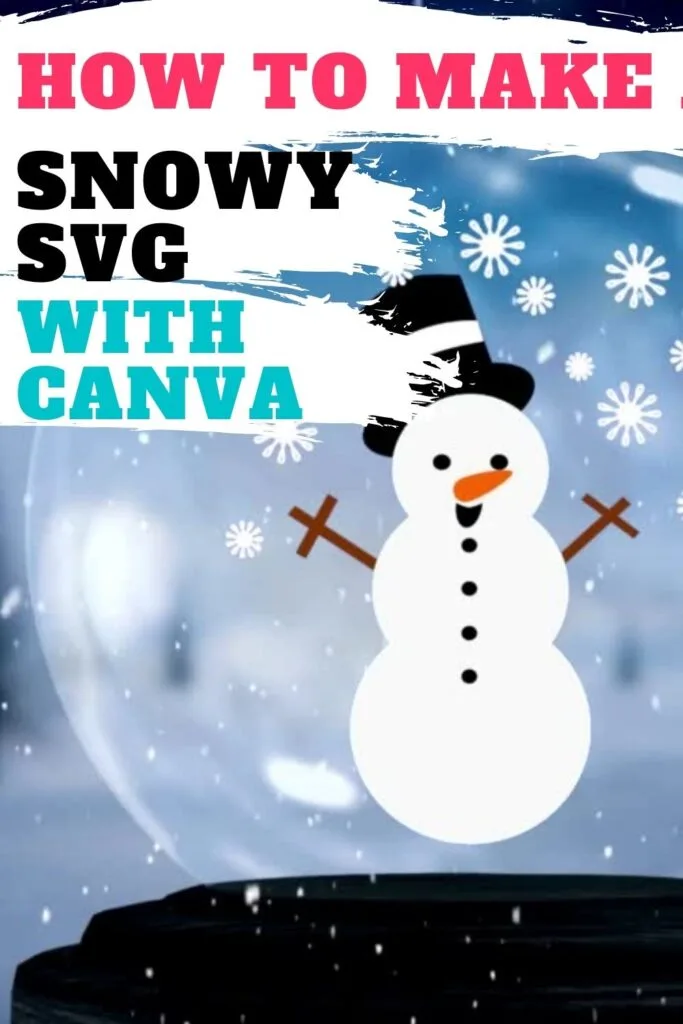
- Search for a video that fits your theme (I chose a snow globe)
- Change the position of the video to send it to the back (behind your image)
- Click on Downloads
- Download the finished design as a GIF
Notes
Make sure your svg file is transparent or has little to no background at all.
Recommended Products
As an Amazon Associate and member of other affiliate programs, I earn from qualifying purchases.


A few tips that will help you get better results are make sure to convert your svg file to a jpg file or a png file.
Pro Tip: Choose an svg image with a simple background. This will be easier to remove. For some reason, png files load with a white background in Canva.
Make Your Own SVG Designs in Canva
Not only can you use the platform to add a video to your svg designs, but you can also use Canva for making svg files.
This is a good option if you want to make a quick easy design that doesn’t have layers.
For a step-by-step tutorial, check out my post on how to use Canva to make svg files.


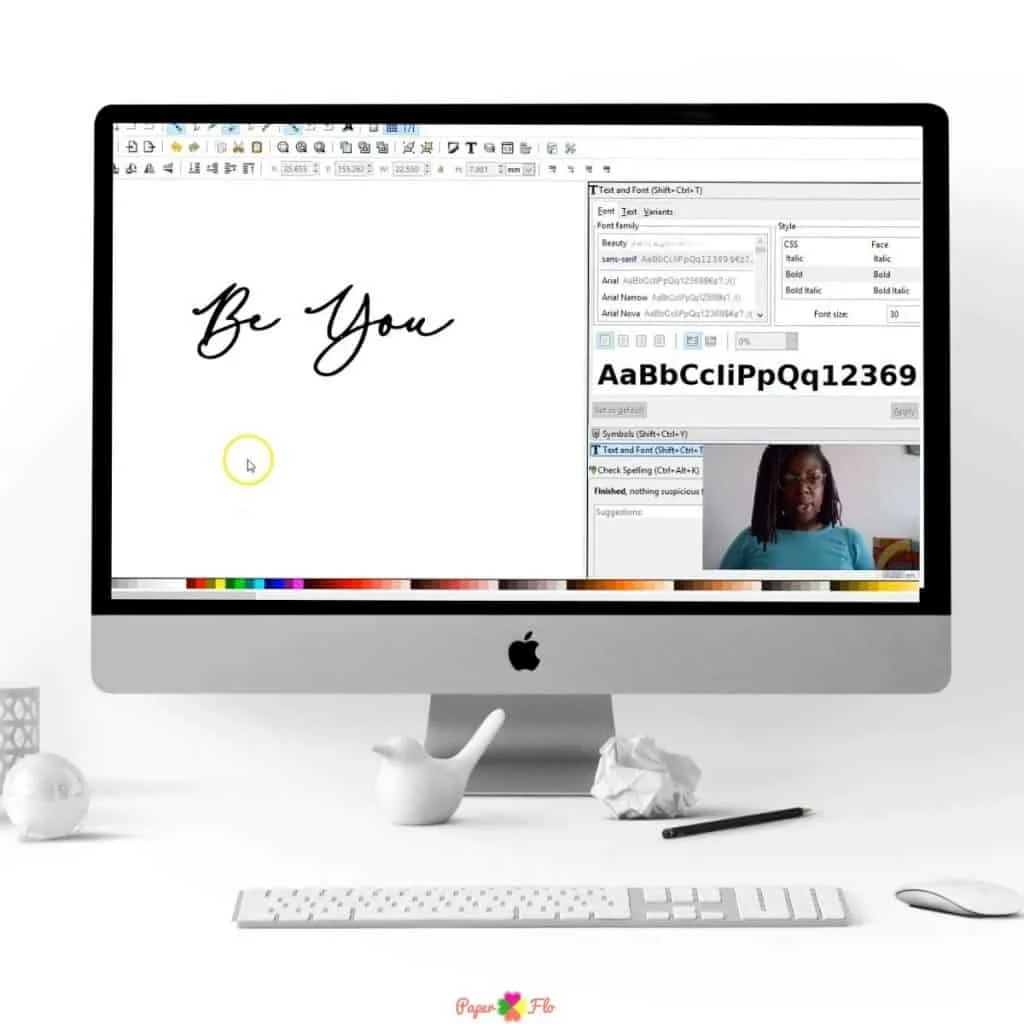
If you liked this lesson, you’ll love my So Simple SVG Files course.
I will walk you through the steps to make digital drawings using simple shapes in Inkscape.
You’ll also learn how to transfer your drawings to your craft projects and get better use from your cutting machine.
Want more easy tips for svg projects like this? Check out my collection of svg tips.
