
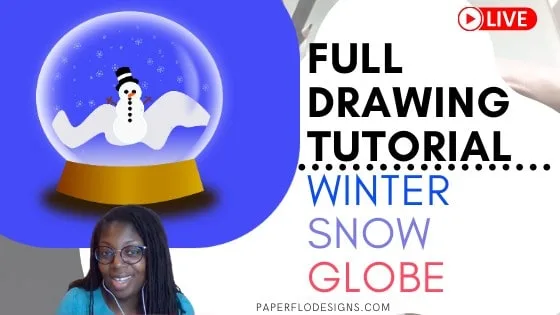
I’m showing you how to draw a winter snow globe in Inkscape. It’s got the snowman and snowflakes that I made in a recent tutorial.
Since it’s cold here and it actually snowed in the south of France (on Christmas and it stuck to the ground until the next day), I made a drawing to go with the season.
This tutorial is part of my Holiday drawing series. You’ll find lessons to show you how to draw a Christmas tree.
Watch the Snowman and Snowflakes drawing tutorial
We’ll use shortcuts from my Inkscape Ready Set Go ebook, plus some other tricks.
This tutorial is ok to try if you’re a beginner. If this is your first time, I suggest you drawing the snowman above and then come back to this one.
I use simple shapes to make this design. These are circles and rectangles. The snowflakes and the snowman were from another svg lesson, so I only needed to import them into this canvas.
Even these elements were done using circles, squares and stars. All of these tools are already provided for you in the Inkscape program.
Make sure to watch the videos to see where to find them.
The drawing should take about 25 to 30 minutes to make from start to finish.
If you already have some experience, then go ahead and make the snow globe below. I use gradients and the blur feature to get the globe to glow and to give it a 3-D effect.
Step by Step Instructions
How to Draw a Snow Globe - Video Tutorial

Materials
- Inkscape
Tools
- Computer
Instructions
- Make a colored background. I drew a blue square. Since the snow globe is white, it needs to be on a colored background to be seen.
- Import a figure into Inkscape. This will go in the middle of the snowglobe. I used the snowman from another tutorial.
- Draw a medium circle. Drop it behind the snowman. Duplicate the circle and adjust the gradient.
- Draw a rectangle. Double click the shape to adjust the nodes to make the wooden base. Duplicate the base and add a gradient.
- Draw a snowflake and duplicate it and adjust the size. Copy and paste the snowflakes inside the globe.
Recommended Products
As an Amazon Associate and member of other affiliate programs, I earn from qualifying purchases.


If you like this tutorial, save it to your favorite drawing board in Pinterest.
Every time you pin any of my posts, it helps me get the word out about my blog and allows me to make more helpful tutorials for you, just like this one.
Click the video below to watch the full tutorial video


Frequently Asked Questions (FAQ)
Q1: What is Inkscape?
Inkscape is a free and open-source vector graphics editor that allows you to create and edit scalable vector graphics (SVG) files.
Q2: Do I need any prior experience in drawing to follow this tutorial?
No, this tutorial is designed for beginners. It provides step-by-step instructions on how to draw a snow globe in Inkscape, so you don’t need any prior drawing experience.
Q3: What software do I need to complete the tutorial?
You will need to have Inkscape installed on your computer. It’s available for Windows, macOS, and Linux, and you can download it for free from the official website: https://inkscape.org/.
Q4: Are there any specific tools or features in Inkscape that I should be familiar with?
The tutorial will introduce you to the necessary tools and features as you progress. However, having a basic understanding of shapes, paths, and layers in Inkscape can be helpful.
Q5: Can I customize the design of the snow globe?
Yes, you can customize the design to your liking. The tutorial will guide you on how to create the basic snow globe, but you’re encouraged to add your own creative touches.
Q6: How long does it take to complete the snow globe drawing?
The time it takes to complete the drawing may vary depending on your familiarity with Inkscape and the level of detail you want to add. On average, it may take 1-2 hours.
Q7: Is this tutorial suitable for children?
Yes, this tutorial can be suitable for older children and teenagers who are interested in digital art and Inkscape. Adult supervision or guidance may be required for younger children.

How to Draw a Multicolor Snowflake - Paper Flo Designs
Friday 22nd of January 2021
[…] you missed last week’s session, I made a Winter snow globe with a snowman sitting on a hill, and a flurry of snowflakes around […]