

So you just found the perfect svg files for crafting. You pop them in your shopping cart, buy them and download them, and now you’re ready to get crafting!
But wait a minute, when you go to open your svg files, they are not there! WHERE DID THEY GO?!
Before you panic and think that you just got hoodwinked, let me reassure you that they didn’t go anywhere. They are still in the same zipped (compressed) folder you downloaded them to (most likely, the downloads section of your computer). Your files are there but you can’t use them just yet because they need to be extracted/unzipped from the zip folder.



Really, you will need to unzip/extract the files from the zip folder before you can use the files. Don’t skip this step. If you do, you won’t be able to open the files in your cutting software.
I’ll explain how you can easily do this. It’s not as complicated as it sounds. So, here we go.
I get commissions for purchases made through some of the links in this post. There is no extra cost to you. See my full disclosure here.
How to unzip files on Windows


To unzip (extract) files you’ll need to first locate the zipped folder that you want to unzip (extract) files or folders from.
Next, you can do either of the two following options:
1. To unzip a single file or folder,
- open the zipped folder
- then drag the file or folder from the zipped folder to a new location.
2. To unzip all the contents of the zipped folder (I prefer this method),
- press and hold (or right-click) the folder,
- select Extract All, and then follow the instructions.


How to unzip files on a Mac
You can also open a zip file with your Mac. All Macs running Apple’s OS X operating system come with a utility that you can use to unzip zip files.
To unzip files on a Mac, simply follow the steps below:
- Double click the zipped file.
- The file will automatically be decompressed into the same folder the compressed file is in.
- Access the extracted files by clicking on the file of your choice.
Why zip files?
If you’re wondering “Why even bother to zip files?”, here’s why. Zip folder files take up less storage space and can be transferred to other computers more quickly than uncompressed files. It’s easier to share a group of files in a zip file and that’s the reason why I zip all of my files.
Now that you’re an expert at unzipping files you’re ready to use svg files with your cutting machine like the Cricut Maker. You’re no longer stuck wondering how to open the zip file or why you can’t find your new svg. You got this!
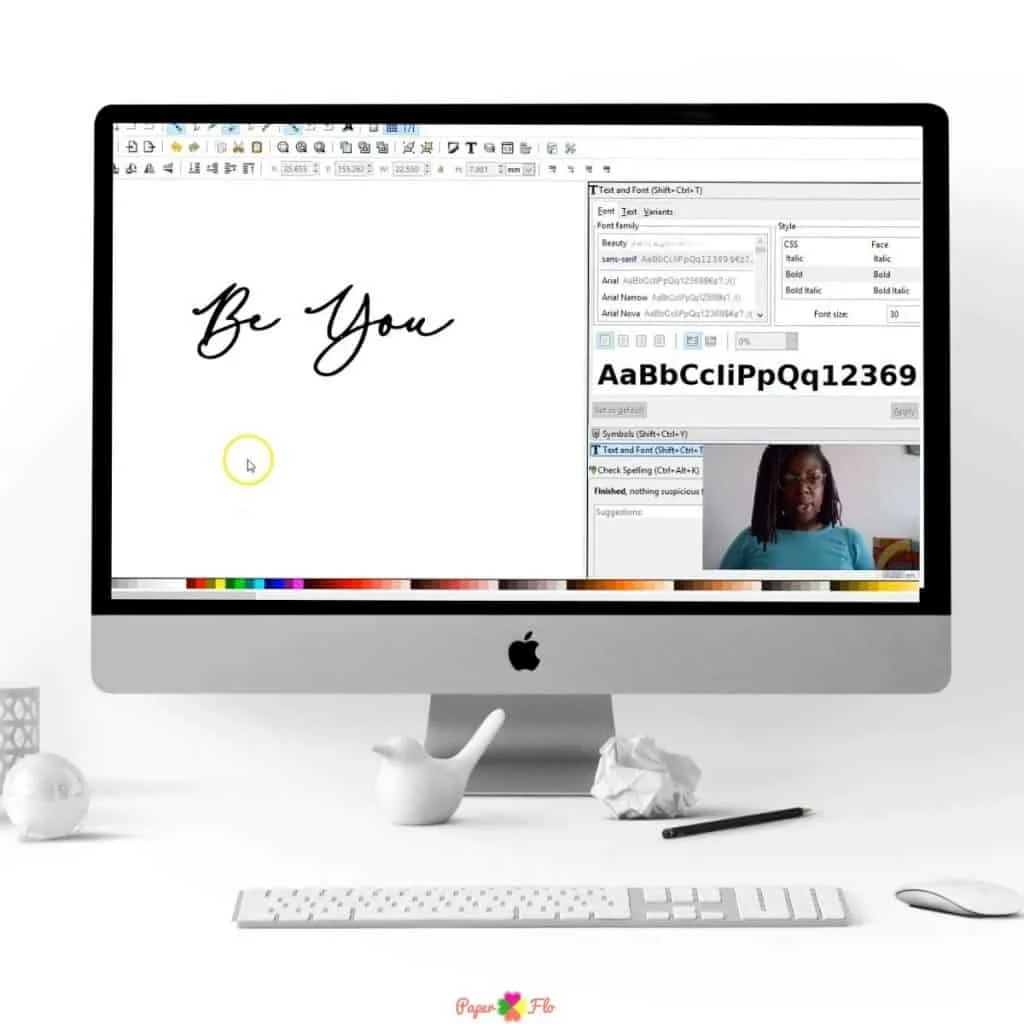
How about learning how to make your own cut files?!
Related:
