
These 3 quick Inkscape shortcuts will help you make cut files for your Cricut Maker projects in a faster and easier way.
If you have a Cricut machine, then you know how versatile it is. If you’re wondering what kinds of crafts to make with a Cricut, here is a shortlist.
- vinyl decals
- pillows
- dolls
- graduation gifts
- baby shower decorations
- glitter tumblers and mugs
I get commissions for purchases made through some of the links in this post. There is no extra cost to you. See my full disclosure here.

Make Crafts with Cricut Maker
If you don’t know about Cricut, here is a little background info. Cricut has lots of different types of die-cut machines that are loved by crafters everywhere.
With so many types of machines, it could be complicated to know how to pick the right cutting machine for you, but any Cricut machine is usually a safe bet.
One of their most popular machines is the Cricut Maker. Crafters love it because it can quickly cut over 300 materials! Pretty much anything that you can think of, the Maker can cut it, like paper, fabric, mat board, leather, and basswood. It’s really versatile.


Once you start making crafts with it, you’ll probably be using the designs available in Cricut Design Space or using the Cricut design templates and maybe also buying svg files from Etsy.
After a while, you may want to make your own svg files. This means learning how to use a digital design software program like Adobe Illustrator, Photoshop, Affinity Designer or Inkscape.
If you’re just at the beginning of your design journey, and you need a step by step tutorial on how to start making graphics in Inkscape, sign up for my So Simple SVG Quotes course.


I will walk you through the steps to make digital drawings using simple shapes in Inkscape. You’ll also learn how to transfer your drawings to your craft projects and get better use from your cutting machine.
Draw In Inkscape
I started learning to draw digital designs with Inkscape and years later, I still love it! It has a bit of a learning curve, but so do all of the programs out there.
I like to use Inkscape because it is vector based (the designs don’t get pixelated like they do with raster-based programs) and it’s open-source graphic software. This means it’s free to use. Who doesn’t like free?
Since Inkscape is a desktop program, I use it on my PC but sometimes, I use an online drawing app when I’m on my iPad.
Inkscape Shortcuts
So how do you make beautiful, clear graphic designs with Inkscape, that you can use with your cut machine?
Well, it takes a few hours to learn how to use Inkscape and a few more months to get really good at it, but before you run away… I’ll share 3 quick and easy shortcuts with you right now.
So here are 3 ways that I use Inkscape shortcuts to draw and to edit digital drawings.
In the video below, I use the following shortcuts:
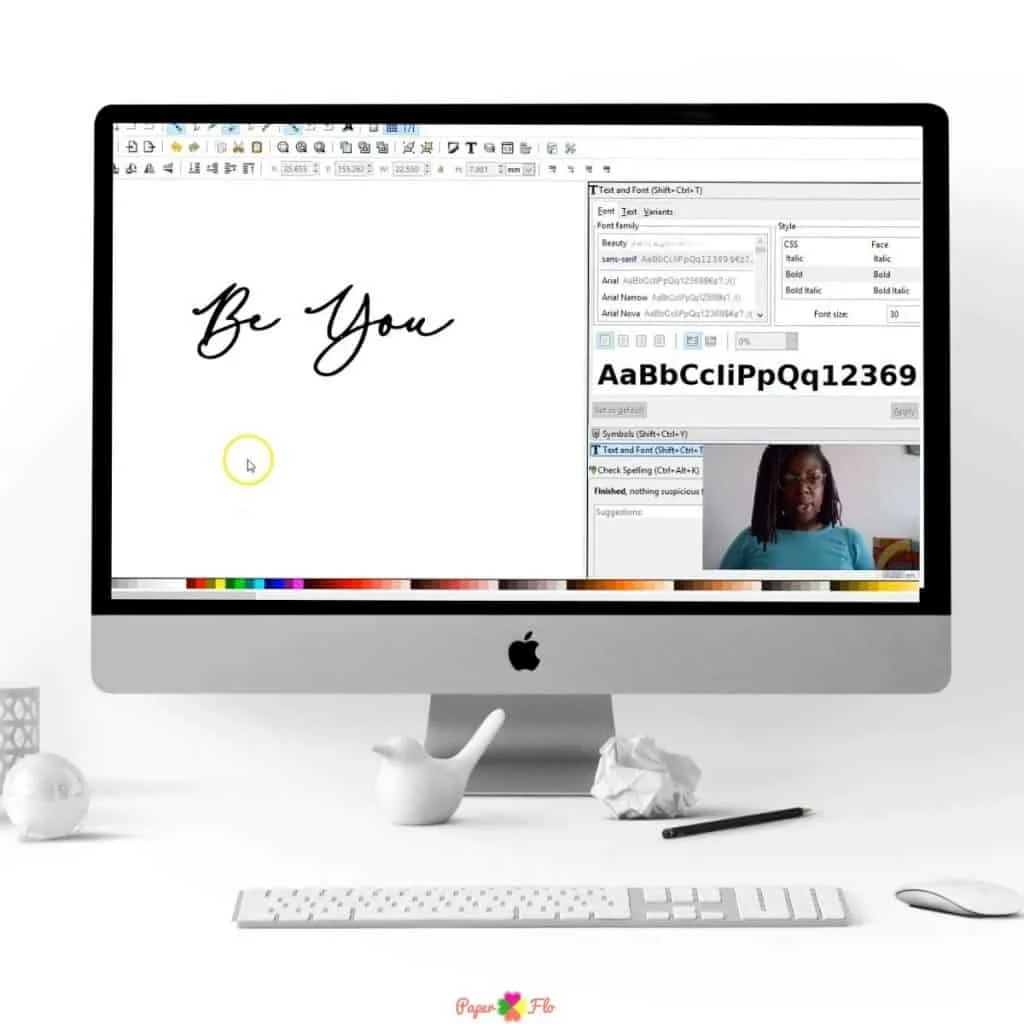
- Ctrl+D to duplicate part or all of the design
- t to create text (if you want to make fancy fonts, use this shortcut)
- Shift+Ctrl+t open text menu for fonts and other text properties
WATCH 3 QUICK INKSCAPE SHORTCUTS INTRO
Find the video with full explanations, further below
Inkscape is great for making svg designs but if you’re spending half of your time looking for each function, you’re probably going to lose patience and lose interest. And, I don’t want that for you.
Instead of going to the menu bar each time you want to change from one function to another, it’s better if you know how to use the shortcuts.
That’s why I created a quick and easy to use e-book for the most used shortcuts in Inkscape.


This e-book will show you the default keyboard and mouse shortcuts of Inkscape.
This will help you use Inkscape simply and quickly. And I know that you’ll love saving all that time!
You’ll finally be able to make your designs in Inkscape with ease once you know these tips.
Make sure to save this to your favorite Cricut board on Pinterest. Click the link below to save it for later.
Watch the video to learn how to use each of these items.
