
Do you know that you can use templates in Cricut? Learn how to use Cricut templates and what they can do for you.

You may be wondering what the heck do you need a template for. Well, templates help you see your project as a finished piece.
Let’s say you’re making a funny t-shirt that has an arrow image on it. You want the arrow to be centered on your shirt. An off-centered arrow will just look odd.
So how do you get it just right?

The answer is to use templates. In the example that I gave above, a custom t-shirt with a name and an arrow image, the two elements should be lined up correctly.
In that case, a t-shirt template will help you see where to place the arrow svg file on your shirt.
No more off-centered images!
If you want to learn how to make your own svg files, check out my So Simple SVG Files course!



Get Started with Cricut Templates
Pro Tip: You’ll have to use the desktop version of the Design Space software to use templates. The two mobile apps, Design Space App (iOS/Android) and Cricut Basics App, do not have access to templates yet.
How Do I Find Templates in Cricut Design Space?
Hopefully, if you have a Cricut machine you have already made a few crafts with it using Design Space.
If you’re thinking about getting a Cricut machine and not sure which one to choose see my guide on how to choose a cutting machine.


If you’re not familiar with Design Space, I’ll walk you through the steps of finding and using the Cricut design templates tool.
A printable version of these instructions can be found at the end of this post. Just scroll down to find it and print it for later.
How to use Cricut Templates
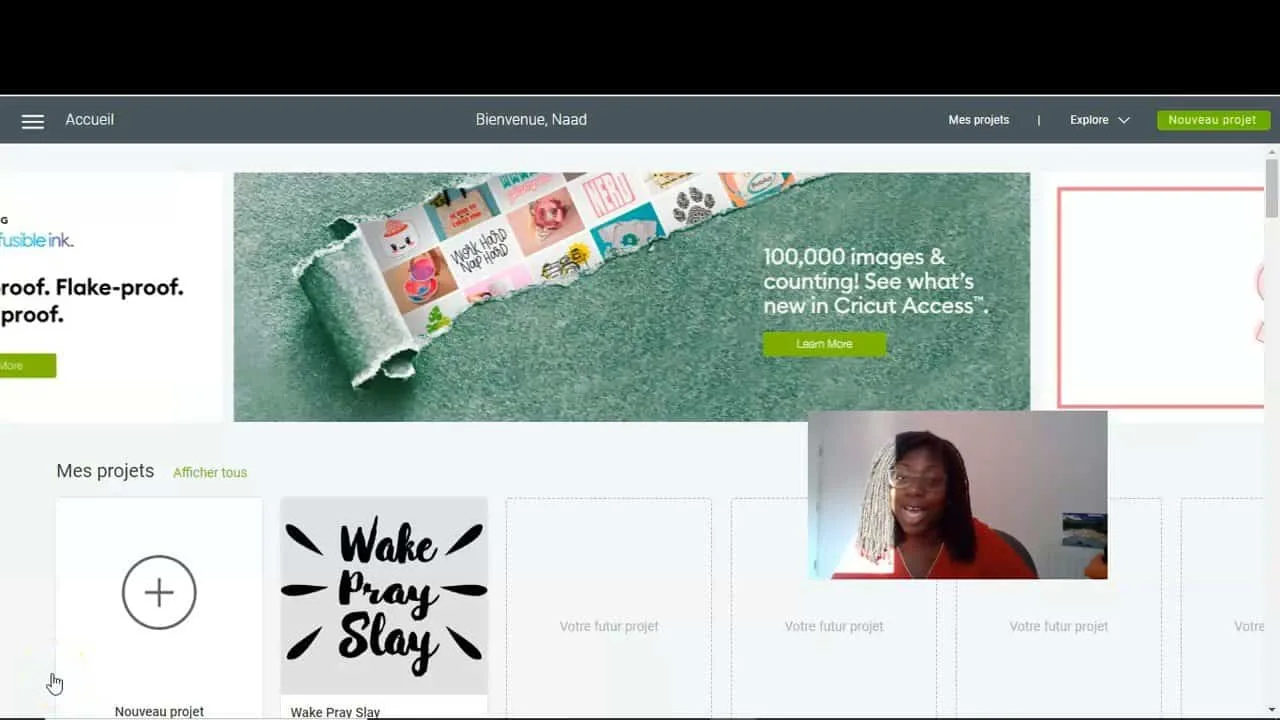
To start, log in to your Cricut Design Space account.


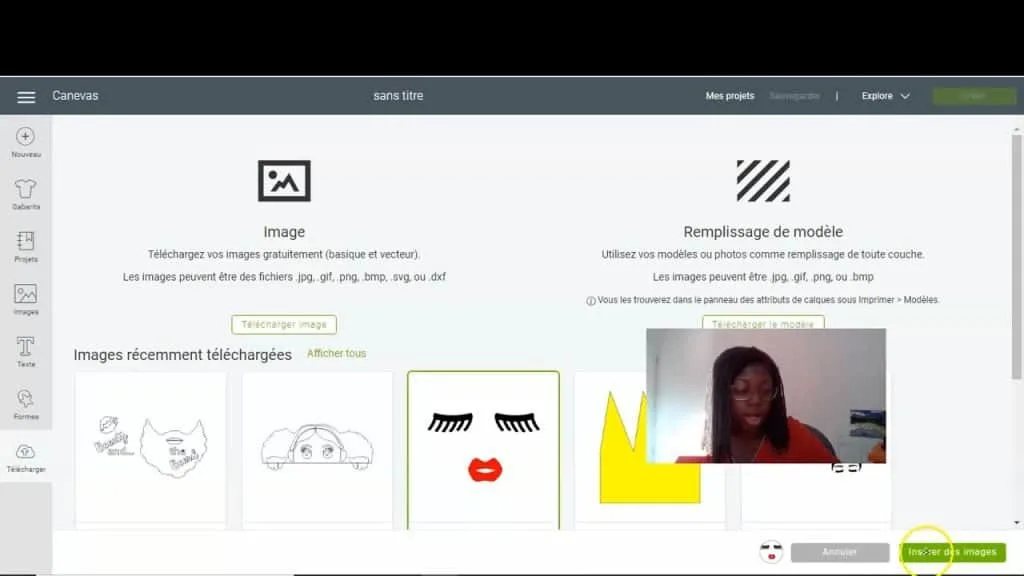
Click the drop-down menu on the left side of your screen and select Canvas.


A new canvas will open up. Select the Templates tool from the Design panel menu. You can find this on the left side of your screen. It should be the second option down.

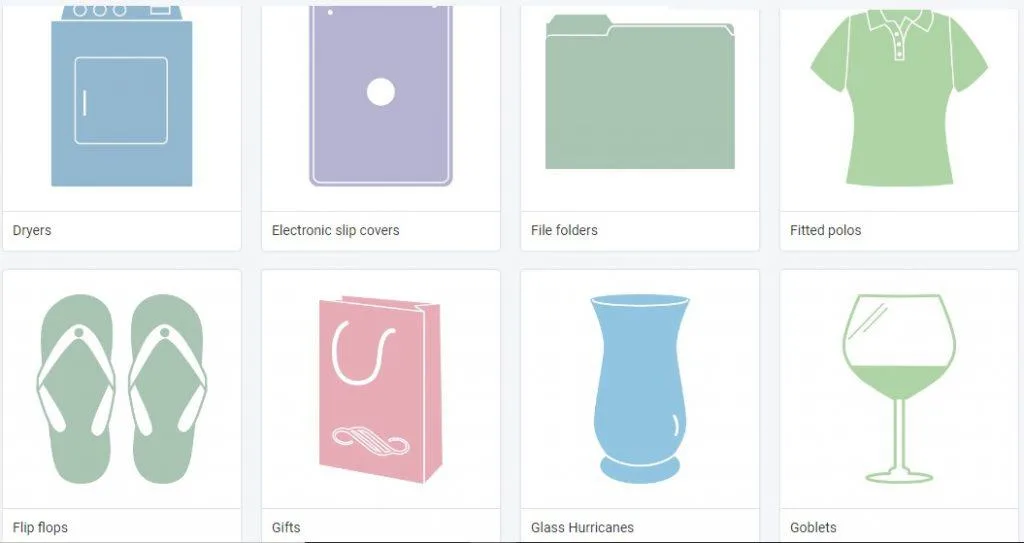
The templates screen will open up. Here, you have a few options for searching for templates. You can find templates in either one of three ways.


SO QUICK SVG COURSE
STEP BY STEP VIDEO COURSE FOR CRAFTERS
Create and design your first svg to use in your crafts or even sell.
Learn to make an SVG with Google in one click!
- Scrolling down through the different templates
- Clicking on the category drop-down menu for options, or
- Typing a word in the search field.
Once you select a template, it will be added to the Canvas screen.


To upload a design to your template, click and drag it from a file or click on the Upload button from the Design panel menu on the left of your screen.
Pro Tip: The template is only for reference. This means that, when you’re cutting out a design, the template will not be cut with the design.

The template can be hidden from view if you no longer need it on your canvas. To do this, simply click on the eye icon on the bottom right side of your screen.
Why use Cricut Templates?

Templates are such a great feature, especially is you make lots of different crafts with Cricut.
If you’re planning a birthday party or a wedding, you can make invitations and thank you cards with the cricut place card template.
There are lots of different templates to choose from.
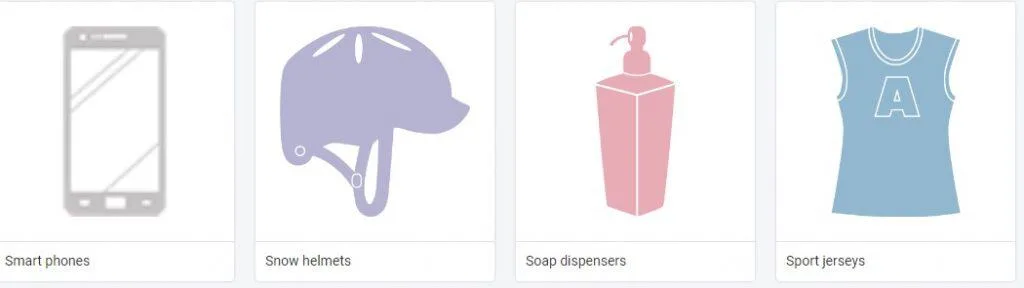
Switch things up and try making a decorative cutting for a phone cover, kitchen mixer, goblet, tumbler, jersey, umbrella, shoes or any of the many other options.
Can you create your own design with Cricut?


You can upload your own designs, patterns to Cricut Design Space.
Once you upload the design, you can customize and modify and edit the svg by changing the colors and adding elements.
You can even cut away certain elements of the uploaded design that you don’t want to appear in your final project.
Want to make your own designs and use them in the templates? Learn how to make svg files, in my So Simple SVG Files course. You’ll learn the basics of how to use graphics software and how to draw basic designs.
You could really personalize your t-shirts with your own designs. Imagine giving a handmade gift made with your own drawings!
Print the instructions below. Keep it on hand the next time you want to use Cricut templates.
How to Find and Use Cricut Templates

Learn how to use Cricut templates and what they can do for you. Templates help you see your project as a finished piece.
Materials
Tools
- Cricut Design Space
Instructions
- Sign in to Cricut Design Space.
- Click the drop-down menu on the left side of your screen.
- Select Canvas.
- A new canvas will open up.
- Select the Templates tool from the Design panel menu. You can find this on the left side of your screen, the second option down.
- The templates screen will open up. You can find templates in either one of three ways
- Scrolling down through the different templates
- Clicking on the category drop-down menu for options, or
- Typing a word in the search field.
- Once you select a template, it will be added to the Canvas screen.
- To upload a design to your template, click and drag it from a file or click on the Upload button from the Design panel menu on the left of your screen.
Notes

Recommended Products
As an Amazon Associate and member of other affiliate programs, I earn from qualifying purchases.


