
You’re definitely going to want to know how to hide a layer in Inkscape if you make SVG files.
Why? Because it will make things easier for you to draw and to edit svg designs.
First, let’s talk about what layers are.
WATCH how to hide layers in Inkscape intro video
No time to read this post right now? Pin it to Pinterest for later.
What are Layers in Inkscape
Think of layers like sheets of tracing paper stacked on top of each other. To draw a face, you can draw the head on the bottom sheet, the eyes on the next sheet, the nose on the next sheet, and finally the mouth on the top sheet.
When you put all the sheets together, you see the whole face.
That’s how layers work in Inkscape.
Reasons to Hide a Layer in Inkscape
I have to admit that I don’t always use layers. That’s because I first learned how to draw in Inkscape by using only one layer.
For me, it’s the easiest way, because I’m used to doing it this way. But, there are a number of reasons why you may want to use layers.
Reasons to Use Layers in Inkscape
- Designs with multiple parts
- Designs with lots of colors
- Designs with multiple parts and colors
So now that you know what layers are and why you may want to use them, let’s talk about how to hide them.
Hide a Layer in Inkscape
Inkscape is an amazing software for making SVG files. I’ve been using it for a few years and I still find new tricks every day!
One of my favorite tricks (well it’s not really a trick, but rather a function), is the ability to hide layers.
There are a few different ways to hide layers. Or at least there are a few ways to get to the layers tool in order to hide a layer.
Yes, you have options. I love having options, don’t you? So let’s take a look at the different options. I’ve also added some photos so you can see what they are and where to find them.
Options to Hide Layers
- Once you have Inkscape opened on your computer, scroll down to the bottom menu bar to find the layers section, use the caret down icon to select the layer you want to hide and then click on the eye icon.

- Click on the Layer button in the top menu bar and select Click/Hide Current Layer (make sure you’re working on the layer that you want to hide).

- Use the Layers shortcut (Shift + Ctrl + L) on a PC or (Shift + Command + L) on a Mac. Now select the layer you want to hide and then click on the eye icon.

Now you know how to hide a layer in Inkscape, let me know what design you’ll make using this function.
Need help to make your own svg files?
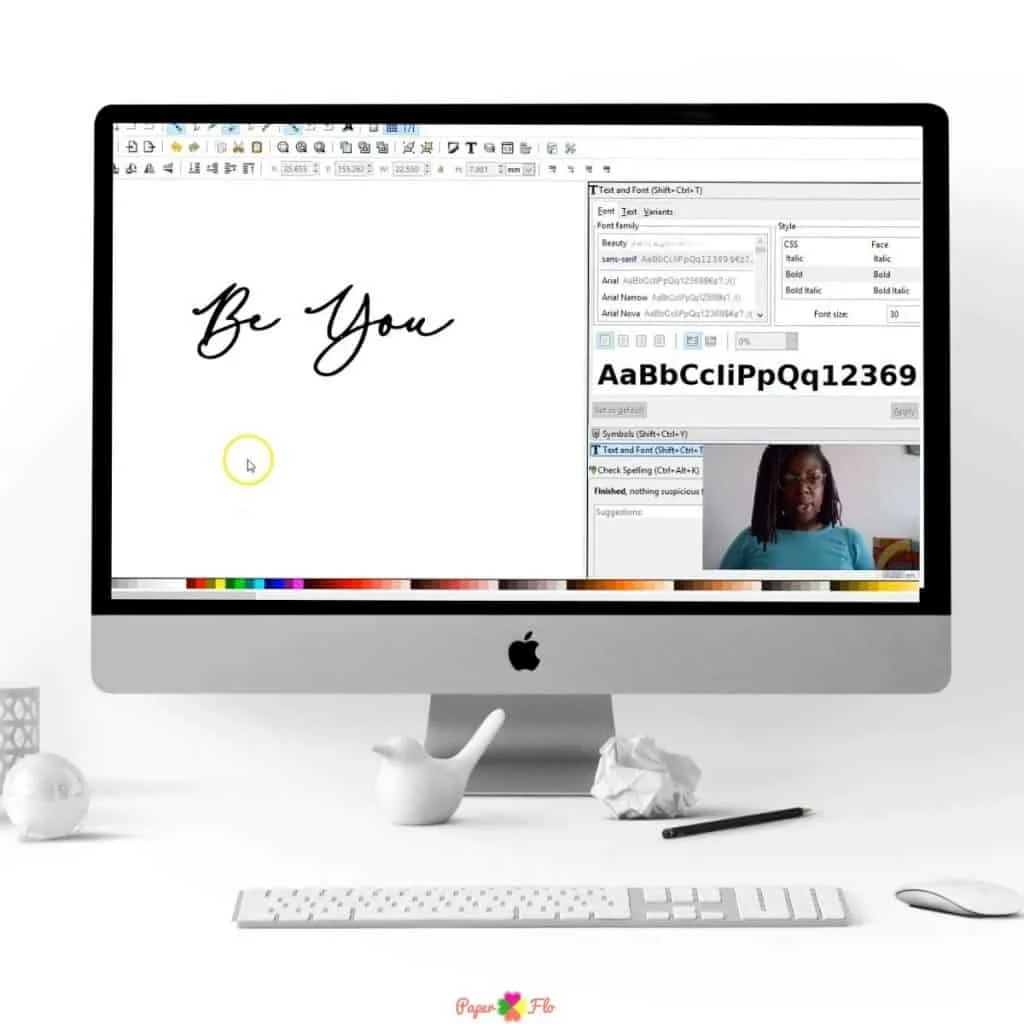
Then sign up for my So Simple SVG Files course. I will walk you through the steps to make digital drawings using simple shapes in Inkscape. You’ll also learn how to transfer your drawings to your craft projects and get better use from your cutting machine.




Make sure to save this to your favorite svg files board on Pinterest. Click the link below to save it for later.

How to Draw Happy New Year Gold Foil Balloons - Paper Flo Designs
Saturday 2nd of January 2021
[…] the sketch, put it on a lower layer and use it as a template for your drawing. You can always hide the sketch layer if it gets in the […]
How to Delete Layers in Inkscape - Paper Flo Designs
Tuesday 29th of December 2020
[…] you only need to hide a layer in Inkscape so that you can see other parts of the drawing more […]