
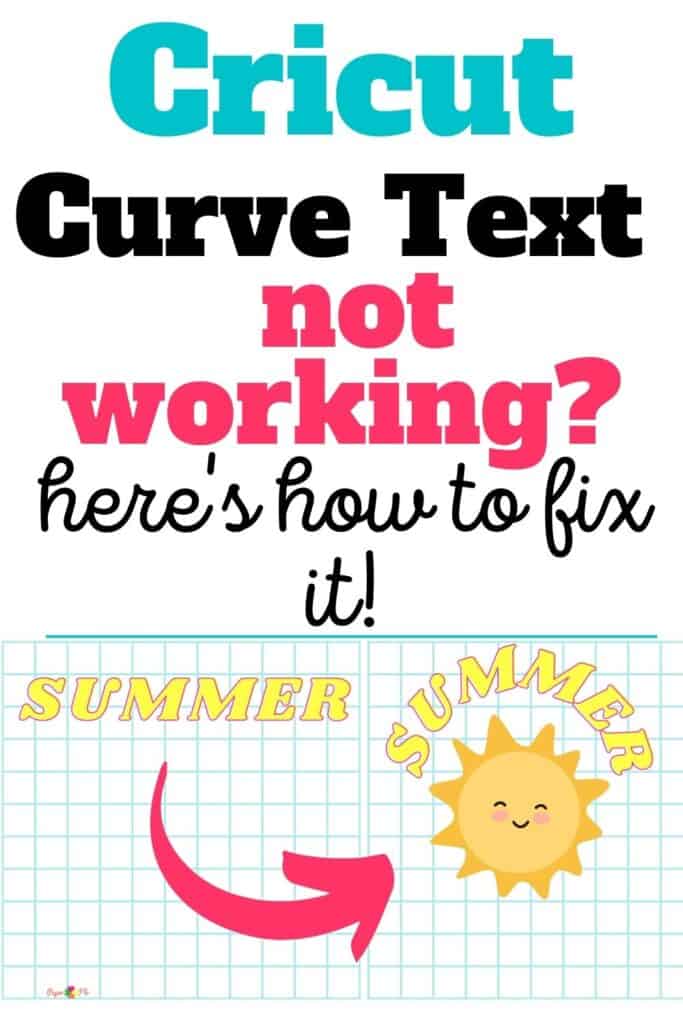
Ah, the wonders of creating with Cricut! It’s all fun and creativity until, uh oh! All of a sudden, the Cricut Curve Text isn’t working. I understand that it can be frustrating.
The last thing you want is to spend time figuring out why this tool isn’t working instead of crafting your masterpiece.
Well, you’re in luck! I’ve got some troubleshooting tips to help you fix this issue and get back to your creative crafts in no time.

I get commissions for purchases made through some of the links in this post. There is no extra cost to you. See my full disclosure here.
Why Is Your Cricut Curve Text Not Working?
There are a few reasons why you can’t get the Cricut Curve Text feature to work.
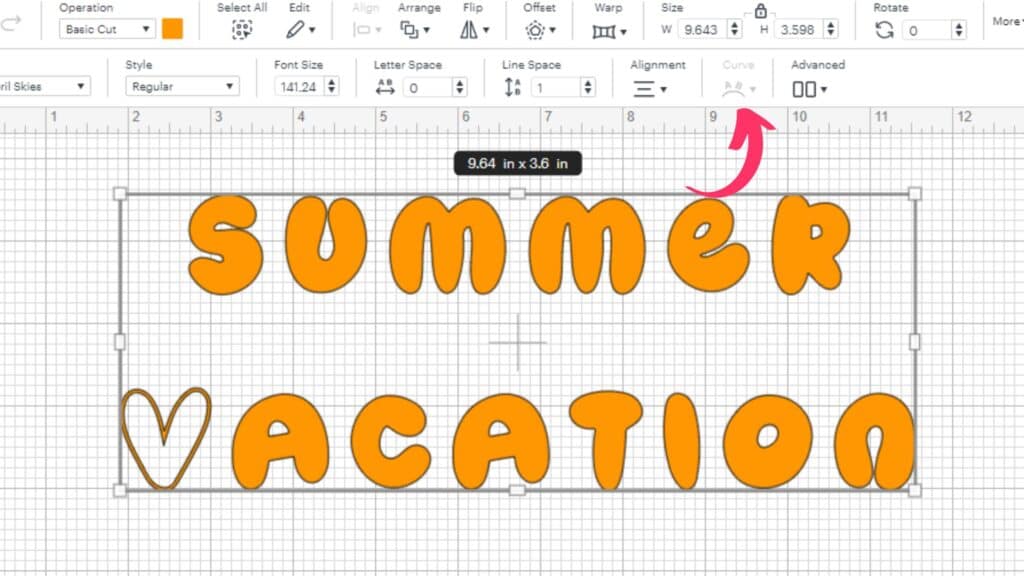
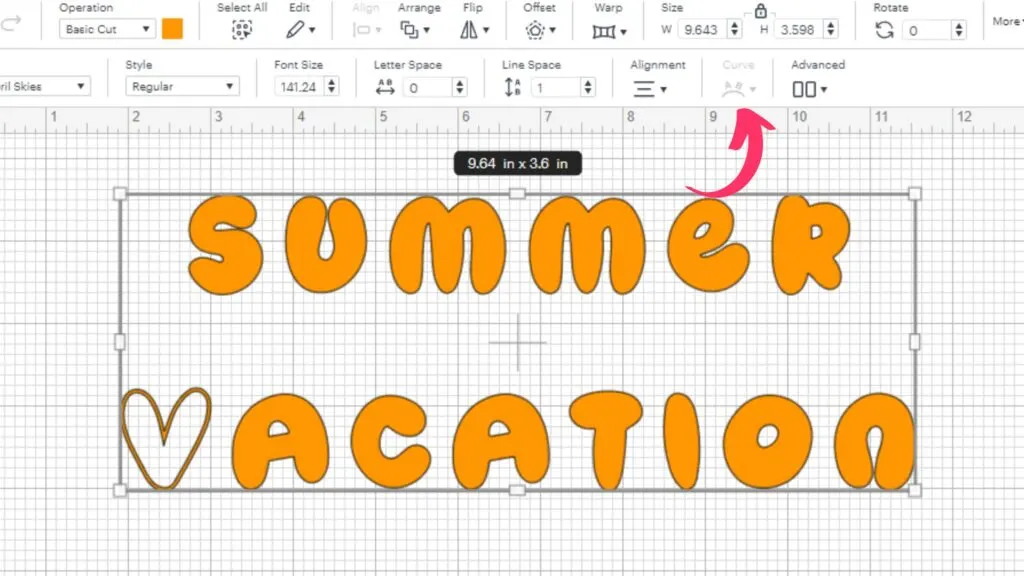
Reason 1: Unexpected Return or Enter in Your Cut File Text Design
You may have hit the Return or Enter key in your text by mistake. This can cause the Curve function to be grayed out and not clickable.
Reason 2: Incorrect Use of Curve Tool
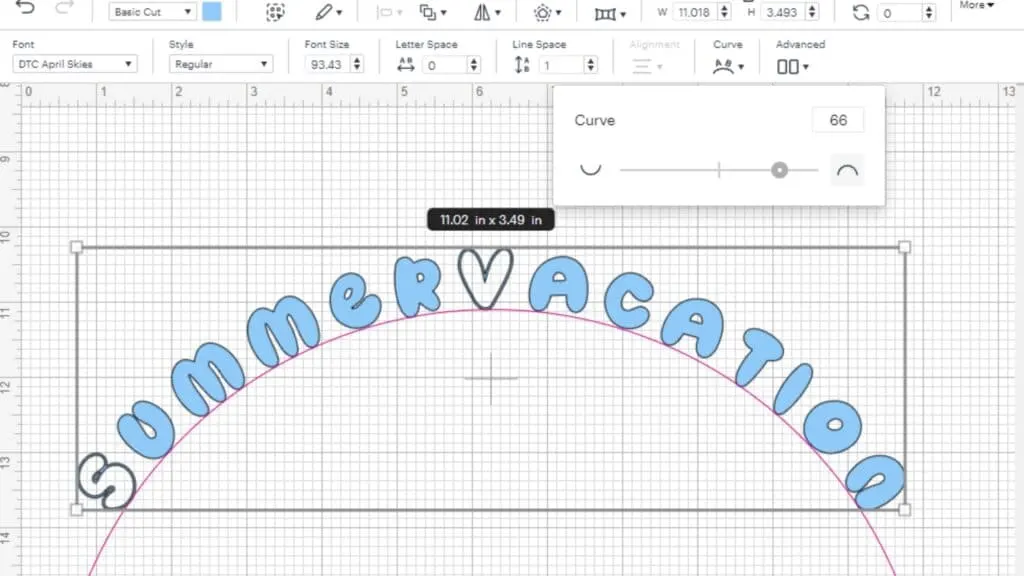
Another common mistake is not using the Curve tool correctly. When you want to curve text in Cricut Design Space, select your text and click on the Curve tool in the toolbar at the top of the Design Space.
Once the Curve tool is selected, slide the slider back and forth to curve your text. Sliding it to the right will curve the text down.

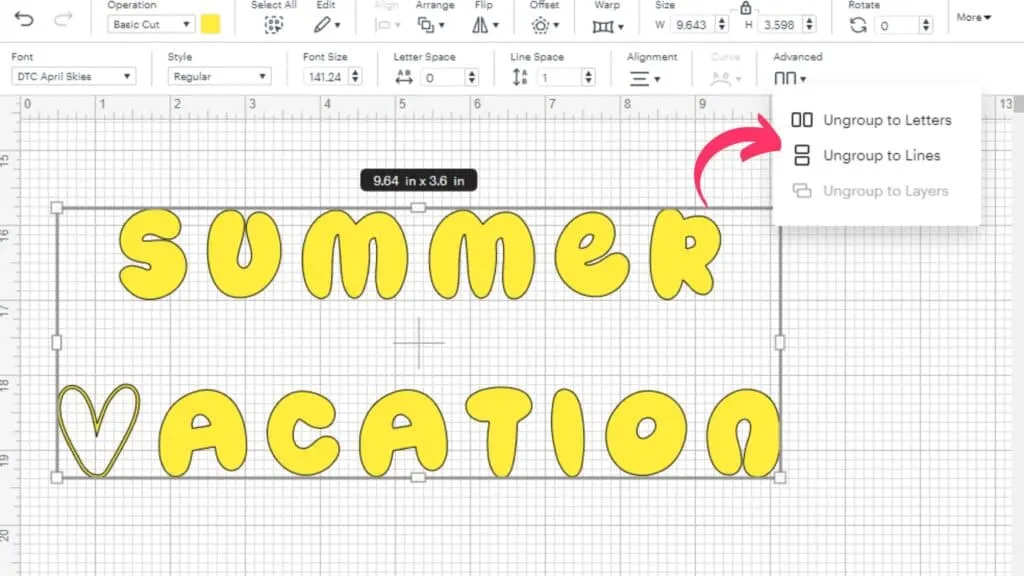
Reason 3: You Forgot to Ungroup the Lines in Design Space
Do you have several lines of text and you forgot to use the “Ungroup to Lines” feature? This can also cause the curve text tool not to work.

Pro Tip: Find more font choices in Cricut Access


How to Fix Cricut Curve Text Not Working
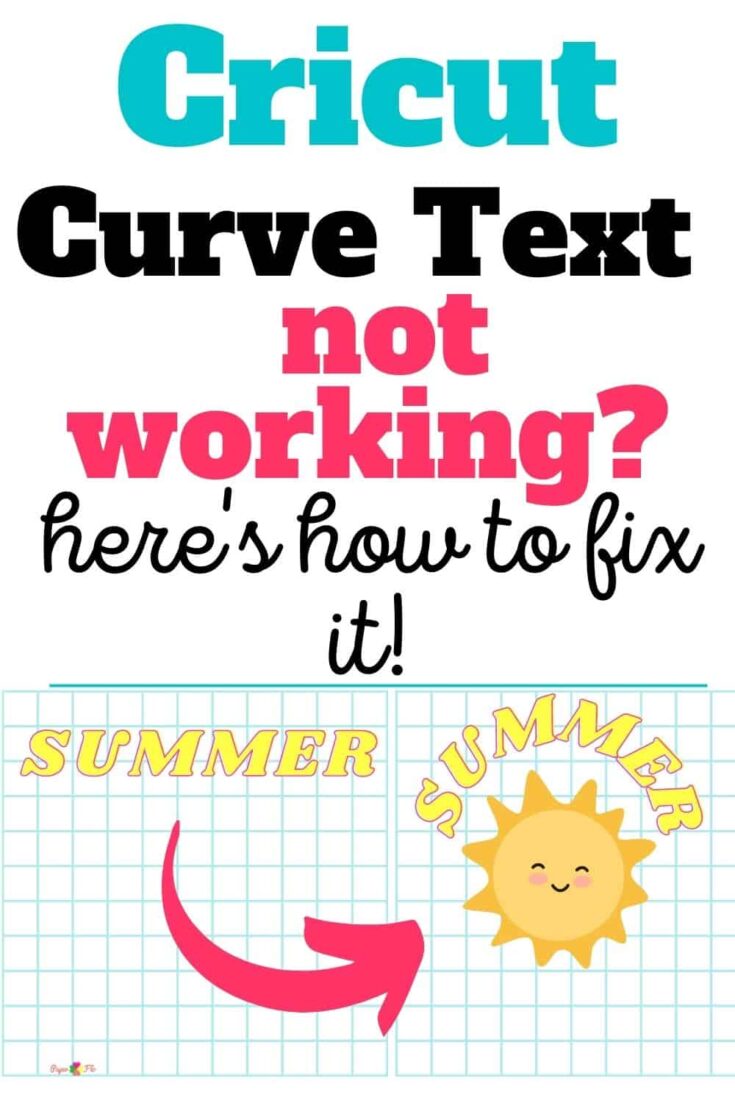
Stuck on how to curve your text in Cricut Design Space? Here are 3 ways to fix it.
Materials
- Cricut Access
- Cricut Design Space
Tools
- Cricut cutting machine
Instructions
- Remove Any Returns or Enters: Check your text for any unnecessary Returns or Enters. Removing these can often fix the issue.
- Correct Use of Curve Tool: Be sure to use the Curve tool correctly. First, select your text. Then, click on the Curve tool in the toolbar at the top of the Design Space. Once you've selected the Curve tool, use the slider to adjust the curve of your text.
- Ungroup the Lines: If you're working with multiple lines of text, remember to use the “Ungroup to Lines” feature before you try to curve your text.
Notes
Find different font ideas in Cricut Access
Recommended Products
As an Amazon Associate and member of other affiliate programs, I earn from qualifying purchases.
Conclusion
There you have it! I understand that dealing with technical issues on Cricut can be quite a downer, but these solutions should help you get the Curve Text feature up and running again.
Give these methods a shot and let me know in the comments which one worked for you, or if you have any other handy tips for Cricut troubleshooting. If you need help with other Cricut craft issues then check out my post on how to fix wrinkled vinyl or this one with six easy steps on how to unweld designs.
Remember, creativity is about pushing boundaries and solving problems, and that includes these minor hiccups too!
Frequently Asked Questions about Curved Text in Cricut
In Cricut Design Space, once you have selected your text, the Curve option will appear in the toolbar at the top of the Design Space.
To curve offset text, first offset your text. Then select the offset layer and apply the curve using the curve tool in the toolbar.
To make text curved in Cricut Design Space, select your text and click on the Curve tool in the toolbar. Use the slider to adjust the curvature of your text.
If your offset feature isn’t working, check to ensure that you’ve selected a word or image before trying to use the offset tool. Also, make sure you are using the latest version of Cricut Design Space.
