
Did you recently make a custom svg file and now you need to know how to upload it to your cutting machine software from your computer? It can be frustrating when you don’t know how but I will show you how to upload svg files to Cricut Design Space and still keep your sanity.


I get commissions for purchases made through some of the links in this post. There is no extra cost to you. See my full disclosure here.
What is an SVG and how does it work?
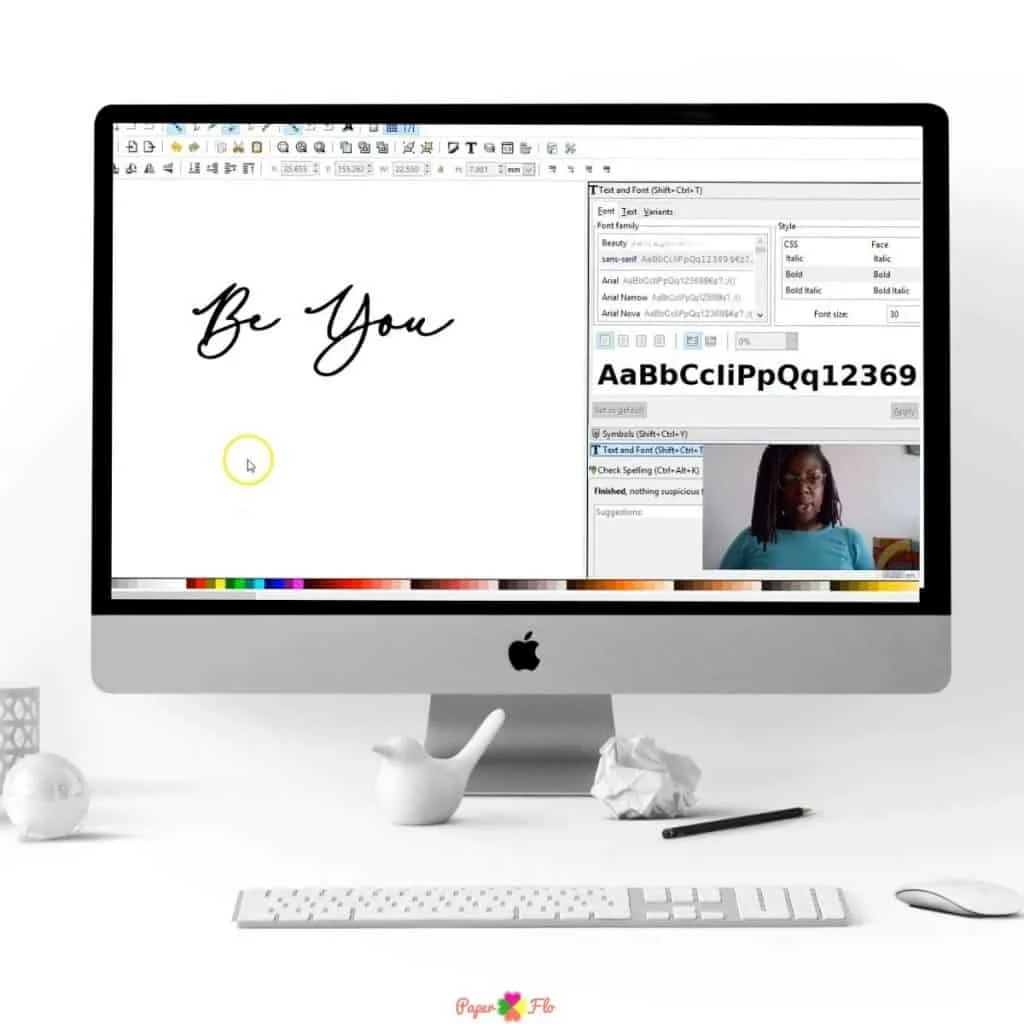
An svg is a vector image. You can tell if an image is a vector if the file type ends with .svg or .dxf. Vector images aka svg files are great for making crafts because you can enlarge or shrink the image without losing quality. If you’re new to svg files, and want to learn to make your own, you’ll love my So Simple SVG Files course!
These images can be single or multiple layer files. A multiple layer file, like this unicorn svg file just means that each section of the drawing is on a different layer, like an onion.
A single layer file means, yeah you guessed it, each section of the drawing is on the same layer, like a cafeteria tray of food, each item has its own section, on a single tray. It’s easy to upload each type, single or multiple layer file, to Cricut Design Space.



Multiple layer images will automatically be separated into layers once they have been successfully uploaded and saved to Design Space.
Single layer images may need to be ungrouped once they have been successfully uploaded and saved to Design Space. You can easily ungroup the image by clicking ungroup in the menu bar.
What can you find in Cricut Design Space?
If you are a Cricut machine user, you probably love the wide variety of svg files that you can find in Design Space. From holidays, sports, celebrations, animals, hobbies and professions, they cover a lot of themes in their graphic design collection.
How to upload an svg to Cricut Design Space
If you created your own svg file, you will find it in the file that you saved it to. This could be a file folder on your computer or a cloud storage like Dropbox or Google Drive.
If you bought an svg file, you will find it in the file that you downloaded it to. Again, it could be in your downloads file on your computer or in your cloud storage account.
Time needed: 10 minutes
Upload SVG Files to Cricut Design Space
- Find .svg or .dxf File
Once you identify the location of the .svg or .dxf file you want to upload,
- Open File Selector
Go to the File Selector in Cricut Design Space and select Open
- Drag and drop File
You can also drag and drop the file into the Design Space image upload window.
Tip: Remember what I mentioned earlier about layers? If your svg is multi-layer, it should separate into layers automatically. Single layer svg files will probably need to be ungrouped.
Cricut Design Space for IPad
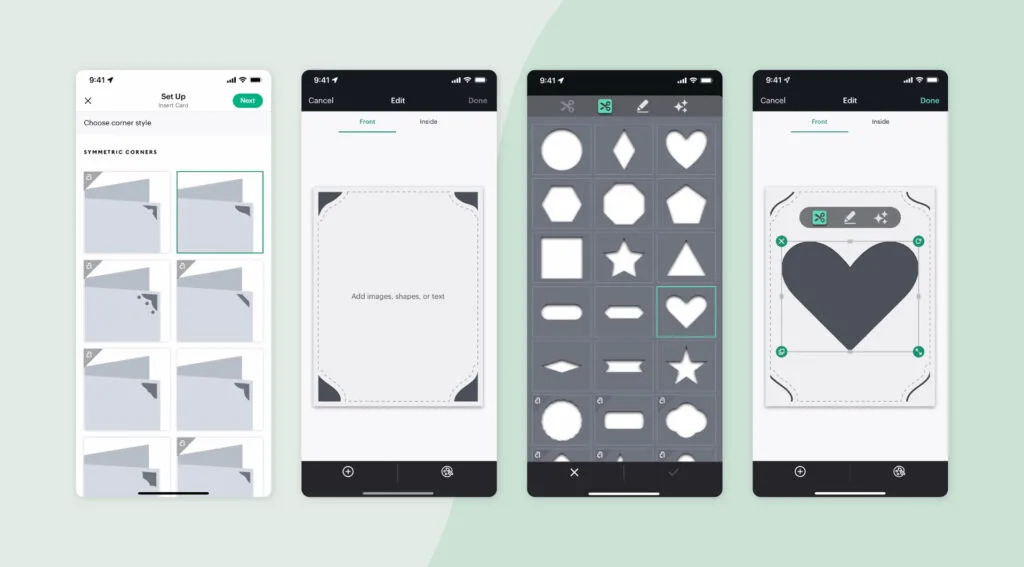
Are you using an iPad? Get an overview of how to use Cricut Design Space app for iPad.


Steps after Uploading Svg File
At this stage, you can name your image and tag it. This makes it easier to find later. The next step is to save your image by selecting and clicking on Save.
After this step, you will automatically return to the Upload screen. Your svg will appear in the Uploaded Images Library at the bottom of the screen.
Click on the image to select it, then select Insert Images to add it to your design screen.
Your svg file may appear on your design screen as a grouped image. Remember that you can ungroup the image layers so that you can move, delete or resize them if needed.
It’s also possible to unweld parts of your svg.


Wasn’t that easy? What are your favorite kinds of svg files? Do you like svgs of funny sayings, sports mascots, animals, faces or a combination of all of these?
Are you ready to try making your own svg images? Sign up for my So Simple SVG Files course. You will learn how to make simple shapes and turn them into drawings that you can save as svg files.


- I Tried 5 Crochet Projects That Actually Sell on Etsy and at Craft Fairs (Here’s What Happened)
- 17 Quick Crochet Gifts for Adults You Can Make and Sell This Weekend
- 7 Painted Bottle Decor Ideas That Look So Expensive Nobody Will Guess They’re DIY
- The Easiest Crochet Projects I’ve Ever Finished (No Counting Rows)
- Craft Room Storage Mistakes That Cost Me Time and Money (And the Fixes I Wish I Did First)

elena
Sunday 17th of September 2023
Love your site. Hope to see more ideas for crafting with Cricut
Naa Ardua
Sunday 17th of September 2023
Thanks Elena. There are lots of Cricut craft ideas on here and I'll be adding more soon.
How to Draw Sunglasses - Paper Flo Designs
Saturday 22nd of May 2021
[…] less than 30 minutes, you’ll have a pair of cools shades. The finished design can be used for SVG projects or printed for sublimation design […]
7 Fun & Easy Cricut Projects for Beginners - Paper Flo Designs
Monday 17th of May 2021
[…] all that’s left to do is to upload the svg to your Cricut, cut out a vinyl template, and apply it to your shirt or cap with an iron or a heat […]
How to Draw Ice Cream - Paper Flo Designs
Friday 7th of May 2021
[…] you’ll have an ice cream cone that looks good enough to eat. The finished design can be used for SVG projects or printed for sublimation design […]
How to Draw a Honey Pot - Paper Flo Designs
Thursday 22nd of April 2021
[…] really quickly. You’re going to love how simple it is. Once you’re done, you can save the design as an SVG and upload it to Cricut or […]