
What Does Flatten Mean on Cricut: Quick 3 Minute Video
If you’re new to the world of Cricut, you may be wondering what the “flatten” button does. This is a crucial step to turn your printable image into an svg file that cuts well on vinyl or paper materials. So, what does flatten mean on Cricut?
Flatten is a feature on the Cricut Design Space software that allows you to combine and merge multiple cut layers into one single layer. This is especially useful when cutting intricate or layered designs with your Cricut machine.
By flattening your design, all of the parts of your project will be cut at once, saving time and energy.
In this blog post, I will explain what flattening means on Cricut, why it’s one of the most important tools, and how to use the function properly.
Tools You Need
- Cricut Design Space
- A single image
- Cricut Access (if you want to try this on new designs)


I get commissions for purchases made through some of the links in this post. There is no extra cost to you. See my full disclosure here.
How Does Flatten Work on Cricut?
When flattening a Cricut design, you combine all the separate layers into one single layer.
This is often done for complex or layered designs to make the entire design easier to cut and assemble.
The flattening feature in Cricut’s design space works by merging the separate pieces and eliminating any unwanted lines or features from the original design.
When using the flatten feature, it is essential to remember that the parts of your project will no longer be able to move independently.
This means that you cannot separate or rearrange elements after they’ve been flattened.
How to Use the Flattening Tool
To start, open a new project and select the images or text you want to combine into one layer. Once your desired elements are selected, click on the “flatten” button. This will combine all parts into one layer and make them easier to cut with your Cricut machine.
This will work with any modern Cricut cutting machine like Cricut Maker, Cricut Joy, or Cricut Explore Air. Basically, any of them that are compatible with Design Space.
Now that you’ve flattened your project, it is ready to be cut. Double-check the design for any overlapping cut lines before cutting. Do you need to unweld layers that stuck together or weld a part of the design? Ensure that the settings and the cutting mat are correct for the material you are using.
How to Flatten a Cricut Design – Step by Step
- Open Cricut Design Space
- Create a new design space canvas
- Upload an image or choose a new image from the Cricut Access library
- Select a layer and change color if needed. Go to the Material Colors menu to get a different color
- Select all of the layers of your image
- Double check that all the layers are selected by looking at the layers panel on the right side of the design screen
- Click on the Flatten button at the bottom of the layers panel
Do I Need to Flatten on Cricut?
Flattening your Cricut design is important for several reasons. These include:
Makes Cutting Easier
When using Cricut, you may come across complex designs with intricate details. Cutting such designs can be a difficult task.
Flattening your design can make the cutting process much easier and faster.
Preserves Design Integrity
Flattening ensures that all the elements in your design are kept together when cutting or assembling.
This helps preserve the design’s integrity and prevents any misalignments or mistakes from occurring during assembly.
Saves Time
When cutting complex or layered designs, cutting each layer individually can take a lot of time.
By using the Cricut flatten tool, you can easily combine all of the different layers into one single layer and save yourself time. It’s a quick way to turn your own images into a print then cut image.
Maintain Professionalism
Additionally, flattening your svg cut files is a great way to make your Cricut projects look more professional.
When all elements are combined into one layer, they will look like a cohesive whole instead of multiple parts that have been put together.
This makes it easier to assemble and finish your project with great-looking results.
You can also merge layers in Inkscape if you this program to design your cut files.
Final Thoughts
Flattening a design on Cricut is an essential step for layered or intricate designs that require multiple cuts. This feature merges all elements into one layer, making it easier to cut your project with one pass.
I hope this article gave you a better understanding of what flattening means on Cricut and how to use the feature properly.
How to Flatten a Cricut Design - Video Tutorial
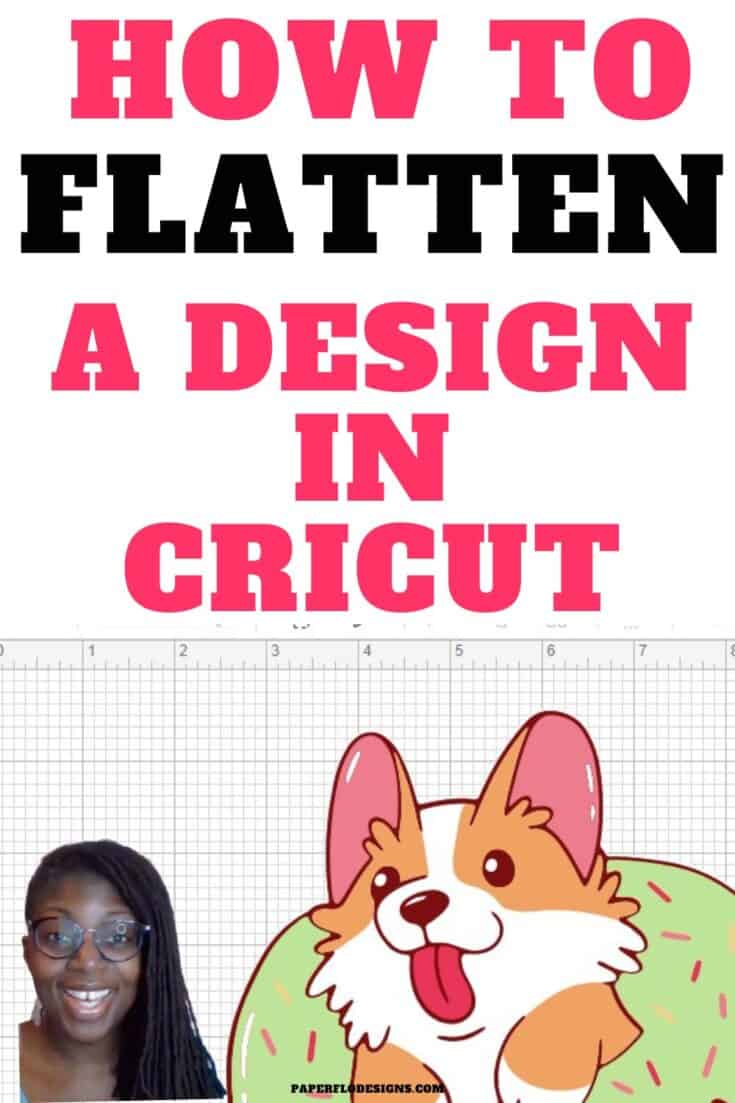
Here is how to flatten a multi-layer design to make the cutting process much easier and faster in Cricut.
Materials
- A multi-layer image
- Cricut Access (if you want to try this on new designs)
Tools
- Cricut Design Space
Instructions
- Open Cricut Design Space
- Create a new design space canvas
- Upload an image or choose a new image from the Cricut Access library
- Select a layer and change color if needed. Go to the Material Colors menu to get a different color
- Select all of the layers of your image
- Double check that all the layers are selected by looking at the layers panel on the right side of the design screen
- Click on the Flatten button at the bottom of the layers panel
Recommended Products
As an Amazon Associate and member of other affiliate programs, I earn from qualifying purchases.
