
Have you seen those personalized t-shirts everywhere? Do you want to know how to make them?
The first step is to figure out how to turn a picture into an svg for Cricut or your preferred cutting machine.
Even if you have no idea what an svg is or how to use them, or even what Cricut is, this is completely doable.
You don’t need to be a crafting pro to make one from a photo.
Trust me when I tell you that it looks a lot more difficult than it really is.
Follow along with the steps that I outline below to make your first converted svg file.
I get commissions for purchases made through some of the links in this post. There is no extra cost to you. See my full disclosure here.
WATCH HOW TO TURN A PICTURE INTO AN SVG FOR CRICUT
Find the full video, with explanations further below.
Isn’t it time to give your Cricut machine some love?
After all, you didn’t pay for it to just sit around collecting dust did you? I didn’t think so.
Hopefully, this is the motivation that you need to get started and make a beautiful svg image for your next Cricut Project.


What software is used to create SVG files?
Let’s talk about what kind of software is used to create svg files. I find that the easy method is often the best method.
When it comes to art and crafts, I’m a fan of doing things the simple way.
For me, that means using what I have on hand or what I can find easily.
Use Inkscape for SVGS
Since I already have Inkscape downloaded to my computer that’s the program that I tend to use and recommend for making svg files.
SVG Converter
If you’re not a fan of downloading programs to your computer, you can use a free svg converter website.
The converter website lets you upload a photo, convert into svg format. But there are some downsides to using a converter like this.
For instance, if you’re trying to convert a multiple-layer or multi-color svg, the final svg may come out in only one color or one layer.
I also have a list of 7 online apps to make svg files with a computer, tablet or smartphone.
Other software to create graphics
You can also use other programs like Adobe Illustrator or CorelDraw to make svg files.
For now, we’ll stick to the Inkscape method in the instructions below.


What is Inkscape?
Inkscape is an open-source vector illustration software. Open source means that there is no fee to use it.
A lot of smart techy guys created the program and they generously make it available to artists like me and you to use it.
You can donate to the program if you choose.
So, moving on, what exactly are vectors? Vectors are the “v” part of svg. SVG stands for scalable graphic vector.
I don’t want to get deep into the techy side.
Just know that a vector is a kind of graphic that you can shrink and expand without losing the quality of the image.
That makes them perfect for crafts like t-shirt making and tumbler making.

How do I convert an image to SVG?
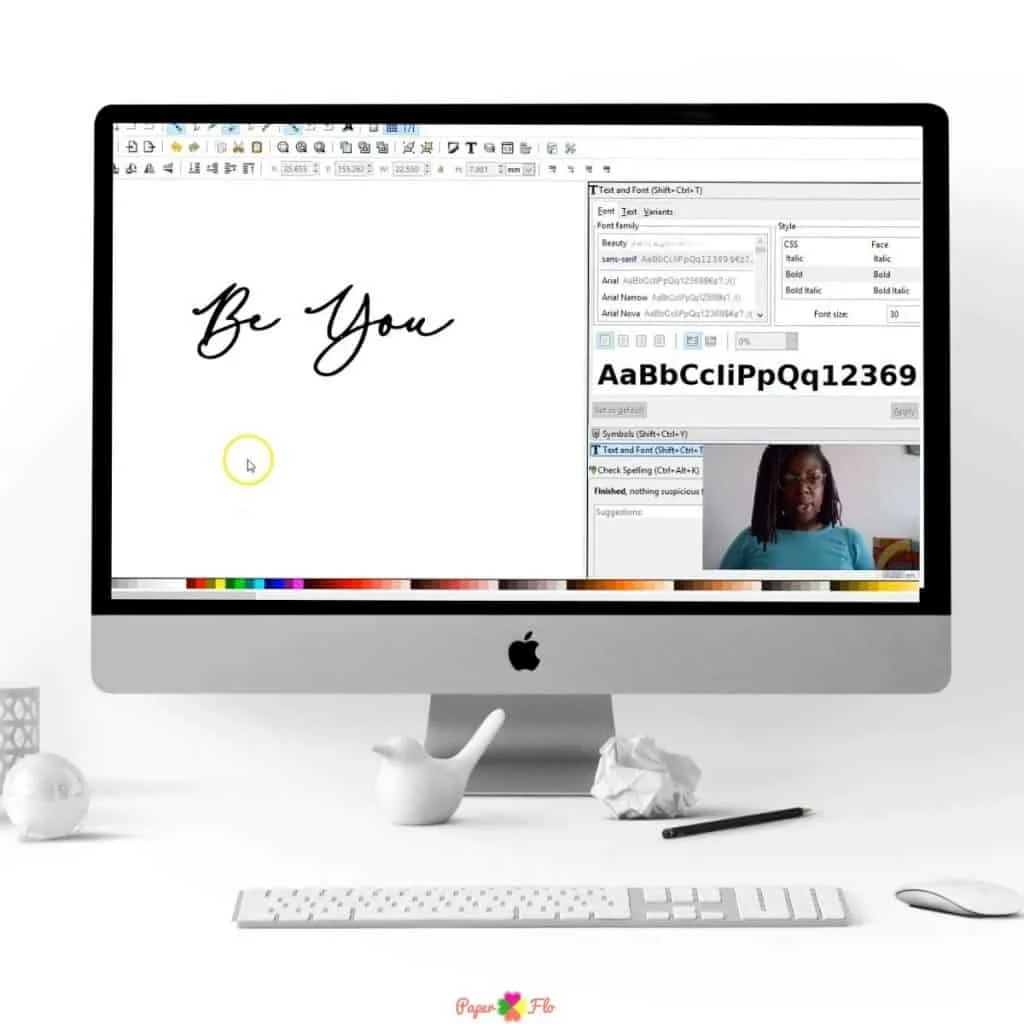
Now that you’ve picked a software program to use (Inkscape is the easiest and the best free svg converter in my opinion), you’re ready to convert your image to an svg.
Let’s get into how to turn a picture into a svg in Inkscape.
There is also a full video tutorial down below.
Watch and see, step by step, how I convert an image to svg.
Convert Photo to SVG for Cricut
Start by uploading your image (png or jpg) to Inkscape.
- Select File then Import
- Choose your photo image
- Click on the uploaded image
- Select Path then Trace Bitmap
- Choose a Filter
- Click “OK”.
For the filters, you have three different options that you can choose from.
- Brightness Cutoff
- Edge Detection
- Color Quantization
Test out each filter to see which one you like best. The results will be different with each filter.
If you want to know all the technical details, Inkscape has tutorials explaining all of the terms for how to trace a bitmap image into a path element on the tracing page of their site.
Now, you have a better understanding of how to turn images into svg files.
If you’re an absolute Cricut beginner you’ll be amazed at all the creative craft projects you can make with svg files and the Cricut machine.


Why Use SVG Files for Crafts?
Once you know how to make your own svg files, you can personalize things like t-shirts, onesies, and tumblers.
After you make your cut file, you can use this tutorial to upload the svg to Cricut Design Space, cut out a vinyl template, and apply it to your shirt with an iron or a heat press like this one from Amazon.
The beauty of using a scalable vector graphic file (svg file), is that it lets you be so much more versatile with your images.
No more struggling with blurry images on your final project!
If you want to make custom svg images, sign up for my So Simple SVG Files course to learn how.
I will walk you through the steps to make simple shapes and turn them into drawings that you can save as svg files.
In the meantime, you can watch the full tutorial video just below.
Click to play the step-by-step video
If you like this tutorial, save it to your Cricut board on Pinterest so that you’ll always have it to refer to.
I’d love for you to share a picture of your converted image with me on Pinterest. Just use the “tried it” feature below this Cricut crafts pin.


Troubleshooting Common Hiccups
Okay, so you’re all pumped up about turning your favorite pics into beautiful SVGs for your Cricut projects, but guess what?
Sometimes things don’t go as smoothly as we’d like. But don’t sweat it; we’ve got your back. In this section, we’ll chat about some common hiccups you might stumble upon and how to fix them.
1. Color Confusion: SVG’s super cool because it can handle all those different colors like a pro. But hey, if your SVG looks like it partied a bit too hard and the colors are all over the place, it might be due to wonky settings during the conversion.
Double-check those settings, and make sure you’re using the right color profiles to keep those shades in line.
2. Mega Complex Images: Sometimes, those intricate designs or crazy-detailed bitmaps can be a bit much for the conversion process.
If you’re having a tough time taming a complex image, consider simplifying it or breaking it down into smaller chunks. It’s like solving a puzzle; bit by bit, my friend.
3. Password Brain Freeze: Oh, the dreaded password issue! If you’ve locked up your SVG with a secret code and can’t remember it for the life of you, don’t fret.
First, double-check your typing – even a tiny typo can make it grumpy. And, of course, ensure you’ve got the right file extension.
4. Software Snags: SVG files are the cool kids on the block, but not all software knows how to play nice with them.
If your software’s giving you side-eye when you try to open an SVG, make sure it’s all up-to-date. Some older software might need a little boost, like updates or plugins, to get along with SVGs.
5. Mobile Mysteries: SVGs are like the cool web kids, but sometimes, they throw a tantrum on mobile devices.
If your SVGs aren’t behaving on mobile web pages, think about offering PNG or JPG versions for your mobile buddies. That way, everyone’s happy, no matter where they’re browsing.
So, here’s the deal – turning bitmaps into SVGs is a fantastic way to jazz up your DIY projects. And if you run into any snags that we didn’t cover here, don’t be shy.
Hit up your crafting buddies in my private Facebook group for some extra tips and tricks. The good news is, with a bit of time and a dash of troubleshooting, you’ll be the SVG champ in no time.
FAQ’s
You can turn a picture into an SVG file for Cricut by first converting the picture into an svg file and then uploading the converted file to a Cricut machine. The easiest way to do this is by using a free online converter. The results vary with this method. It won’t be an exact match of the original image. The free tools are OK but using a professional graphics editor will give you a better result.
You can upload your images to Cricut Design Space. Some of the different file formats you can use are a png file, jpg file, or vector file. This also includes svg cut files that you make yourself and images that you buy from graphic designers or online marketplaces. Make sure that you have permission or a license to use any image file if you are going to use it for more than just personal use.
For the best results, use an svg cut file with Cricut. Almost any image will work but vector images tend to be the best image formats. The vector format allows you to get great image quality.
A Cricut vinyl decal is an adhesive graphic that can be applied to a variety of surfaces. They work well on t-shirts, whiteboards, and windows.
An image can be converted to SVG. Converting an image eliminates the need for high-quality raster images, which can use up a lot of unnecessary file size. To get the best svg conversion, choose an image that doesn’t have a lot of small details. A better option would be to pick an image with a white background. Basically, you want to start with the clearest image possible.
SVGs (scalable vector graphics) are becoming more and more popular as they are a vector image format and they are able to scale to any size, resolution or display.
You can make your own svg files for Cricut either by using a graphic software program such as Adobe programs, Inkscape or Affinity Designer.
Converting a photo, which is a raster image, into an SVG involves tracing the outlines and shapes of the image and creating vector paths.
There are two main ways to turn a photo into an SVG:
Manual tracing: This involves using a vector graphics editor, such as Adobe Illustrator or Inkscape, to manually trace the outlines and shapes of the photo.
Automated tracing: There are software programs that can automatically trace the outlines and shapes of a photo and convert it into an SVG. Examples of such software include Vector Magic and Adobe Capture.
It’s important to note that not all photos can be converted into SVGs, especially if they are very complex or have a lot of detail.
There a few really good free SVG converters, including Inkscape, Canva, and Online-Convert.com.
Each has its own unique features and capabilities, so it’s worth trying out a few to see which one works best for your needs.
SVG is an image format that is based on XML and is used to create vector graphics. It is widely used for web design, logos, icons, and other graphics, as it allows for sharp, high-quality images that can be scaled to any size without loss of quality.
SVG images can be created using vector graphics editors such as Adobe Illustrator or Inkscape, and can be displayed in web browsers using the <svg> tag.

Brittany
Sunday 1st of January 2023
When I save an image on inkscape as SVG then upload in design space it shows up as a blank image. Nothing is there. Why is this happening? Thanks
Naa Ardua
Thursday 12th of January 2023
It could be the type of svg file that you're selecting to save to. Make sure that you have converted everything to paths first and then save it as a plain svg instead of an Inkscape svg.
Happo
Tuesday 2nd of March 2021
Thank you so much for this clear tutorial. I followed exactly your steps including Inkscape installed and had my new svg logo updated on my website in less than 10 minutes!
Naa Ardua
Tuesday 2nd of March 2021
That's great! I'm glad you found it helpful.
Kathy
Thursday 28th of January 2021
I can't find the step by step video. Thank you.
Naa Ardua
Thursday 28th of January 2021
Kathy, the step by step video is at the bottom of the post. Try refreshing the page. It may take a second or two depending on what browser you're using. Then click on the video to play it. I hope you find it helpful.
Rick
Sunday 6th of December 2020
Do the online programs have tutorials to assist the novice. I am so new to this.
Naa Ardua
Sunday 6th of December 2020
I’m not sure, but my courses teach you how to do this.
Lisa
Thursday 23rd of July 2020
I cant find inkscaPe on Apple app atore. Is it still available or has it been renamed?