
If you download an SVG and the colors don’t look right, you can always change them to your preferred colors.
There are a couple of apps and software you can use to make this happen.
This article outlines two options you can consider for the color change.


I get commissions for purchases made through some of the links in this post. There is no extra cost to you. See my full disclosure here.
Different Ways You Can Change the Colors on Your SVG File
You can change your SVG colors using any of the following apps.
Cricut Design Space
If you are a Cricut user, then the easiest method would be to use Cricut Design Space.
This is a software program made by the company.
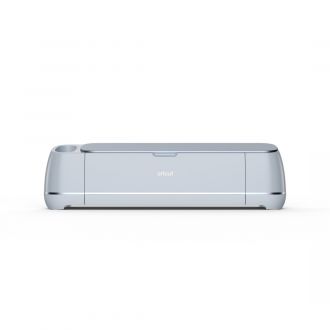
So, of course, it works with the latest model Cricut machines.
Sometimes, working with lots of colors also means working with different layers.
You can find out how to cut a multi-color design in Cricut Design Space in the video below.
How to Change SVG Colors in Cricut Design Space
Follow these steps to change your SVG color.
- Open the app and click on ‘New Project.’
- When it opens, select ‘Upload’ at the bottom left, then ‘Upload image.’
- Click the browse button to locate your SVG file.
- Choose the file and open it.
- Fill in the image name and tags, then hit ‘Save’ at the bottom right.
- Click on your image, then choose ‘Insert images’ on the bottom right.
- Ungroup your file to allow you to recolor each element.
- Select the layers you want to edit.
- On the top bar, you will see ‘Linetype’ and ‘cut’ under it. Next to ‘cut’ is a small square. Click on it and choose the color you want.
- Once satisfied with the outcome, click the ‘Make it’ button.
It’s important to note that this color change only shows in your design if you print and cut. If you’re cutting vinyl, the project will come out in the vinyl’s color.


Inkscape
Inkscape is my favorite way to make and edit svg files.
You can download the app on your device.
Most people use this program on their computer or laptop, but you can also use other devices like an iPad or a tablet.
The only other supply that you may want to have is a graphic drawing tablet.


Check out the video below to find out why Inkscape is so great for creating art for crafts.
Steps to Make Color Changes to an SVG File with Inkscape
It can make working with Inkscape easier if you have a complicated design.
- Copy and paste your image into Inkscape.
- Click ‘Path’ at the top and select ‘Tracebitmap.’
- Uncheck the ‘Smooth’ box, check the ‘Remove background’ and the colors bullet. Then click ‘Live Preview’ and ‘OK.’
- Left-click to separate your images into two; the control picture and the one you will edit. Drag them to different sides.
- Return the image you’re working on to the box in the middle.
- Click on the picture, then click ‘Object’ at the top. Select ‘Ungroup.’
- Pull apart the different layers and pick the one with the best outline. Make sure that all the lines are solid with no breaks. Delete the layers you will not use.
- Drag the layer you have chosen to the middle.
- Select the color you want at the bottom. Slide over the selection line to see the different shades available. Click on the one you want.
- On your left, you will see a bucket icon. Click on it and use it to color the layers you want.
- Repeat this process until you’ve colored all the necessary layers.
- Then, group all the similar colors. To do this, hold your control and shift buttons, then click on the different spaces that have the same color. Then, click ‘Path’ at the top and select ‘Union.’ Repeat the procedure for all the colors.
- Once done with the various colors, highlight the whole image to group it together. Click ‘Object’ then ‘Group.’
- You can now save the file. Click ‘File,’ then ‘Save as,’ change the type to a plain SVG, then click ‘Save.’
Conclusion
Changing the colors in your SVG file is pretty straightforward. Choose any of these two options, and you will have your perfect SVG.
